

WhatsApp guest calls are officially here, and you can now join a WhatsApp voice or video call without creating an account or downloading the app. The new feature, announced on October 14, 2026, lets anyone join through a browser link, provided the call host approves their request.
According to the official WhatsApp announcement, guest calls are free, end-to-end encrypted, have no time limits, and support up to 32 participants.
Here’s exactly how to join a WhatsApp call without an account, create a guest call link, and fix common problems.
How to Join a WhatsApp Call Without an Account
You don’t need a phone number, WhatsApp account, or installed WhatsApp application to join as a guest. You only need a call invitation link, a supported computer browser, and the host’s approval.
Follow these steps:
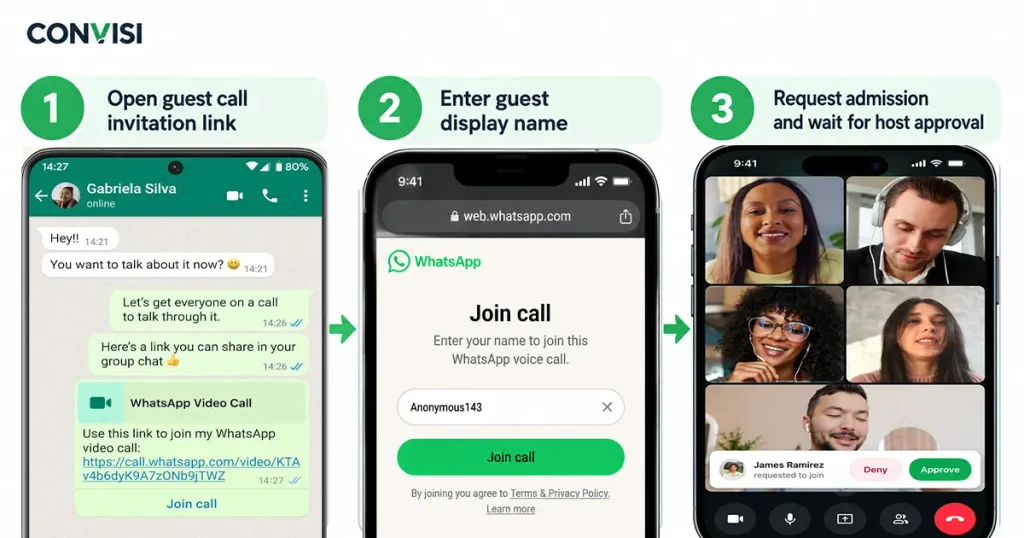
- Get an invitation link. Ask someone with a WhatsApp account to create and send you a call link.
- Open the link on your computer. Click the invitation link in your browser.
- Enter your name. WhatsApp will ask you to provide the name you want other participants to see.
- Allow microphone and camera access. Give your browser permission to use your microphone and camera if prompted. Camera access is needed for video.
- Request to join. Continue to the call’s waiting room.
- Wait for approval. The call host must approve your request before you can enter.
- Start talking. Once admitted, you can participate in the voice or video call without signing in.
That’s all you need to join WhatsApp guest calls.
Important: WhatsApp’s official instructions specify joining guest calls through a computer browser. Don’t assume that an invitation will work in every mobile browser. The feature is also rolling out, so availability may vary.
For the original instructions, see Meta’s official guest calling announcement.
How to Create a WhatsApp Guest Call Link
If you already have a WhatsApp account, you can create a link and invite someone who doesn’t use WhatsApp.
Here’s how:
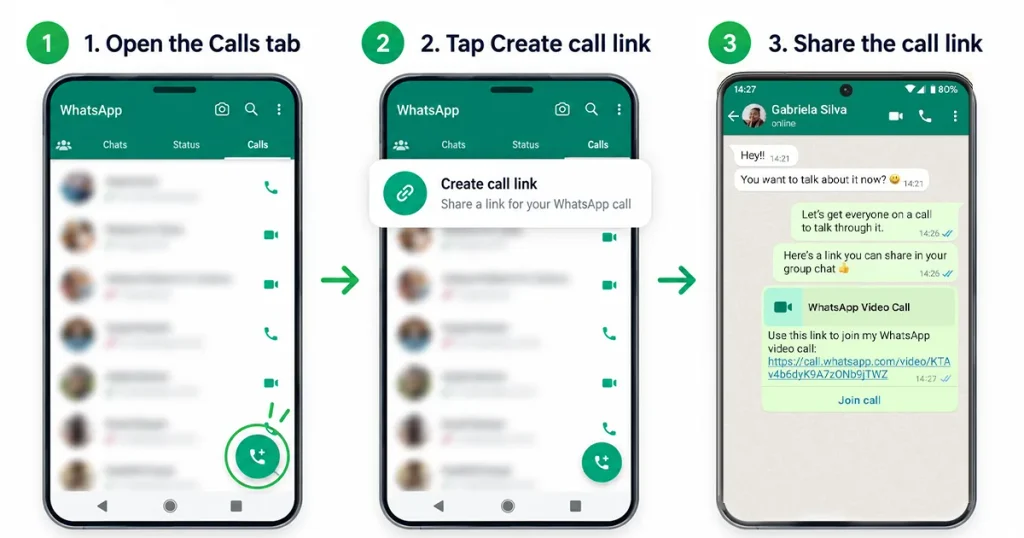
- Open WhatsApp on your phone.
- Go to the Calls tab.
- Tap the + icon.
- Select the option to create a call link.
- Choose a voice or video call if prompted.
- Copy the link or share it directly with the person you want to invite.
- When the guest requests access, approve them from the waiting room.
The guest can then join using their computer browser without creating a WhatsApp account.
Only existing WhatsApp users can create call links. A guest can join a call but cannot create or host one without an account.
You can also consult the WhatsApp Help Center’s guide to creating and sharing call links.
Tip: Share invitation links privately with people you trust. Anyone who receives or is forwarded a valid link may be able to request access, although guest admission still requires host approval.
What Can You Do During WhatsApp Guest Calls?
Guests receive several of the same calling features as regular WhatsApp users.

| Feature | Guest access |
|---|---|
| Voice calls | Yes |
| Video calls | Yes |
| Join without a WhatsApp account | Yes |
| Join from a computer browser | Yes |
| Screen sharing | Yes |
| Thumbs-up and heart reactions | Yes |
| Raise hand | Yes |
| Group calls with up to 32 people | Yes |
| Send WhatsApp chat messages | No |
| Invite additional participants | No |
| View other participants’ phone numbers | No |
| Create a call link | No |
WhatsApp also confirms that guests can share their computer screens to review documents, demonstrate something, or collaborate during a call.
The official WhatsApp calling page explains the platform’s wider voice and video calling capabilities, while WhatsApp’s July 2026 web calling announcement covers browser-based calling features.
How to Approve or Remove Guests From a WhatsApp Call
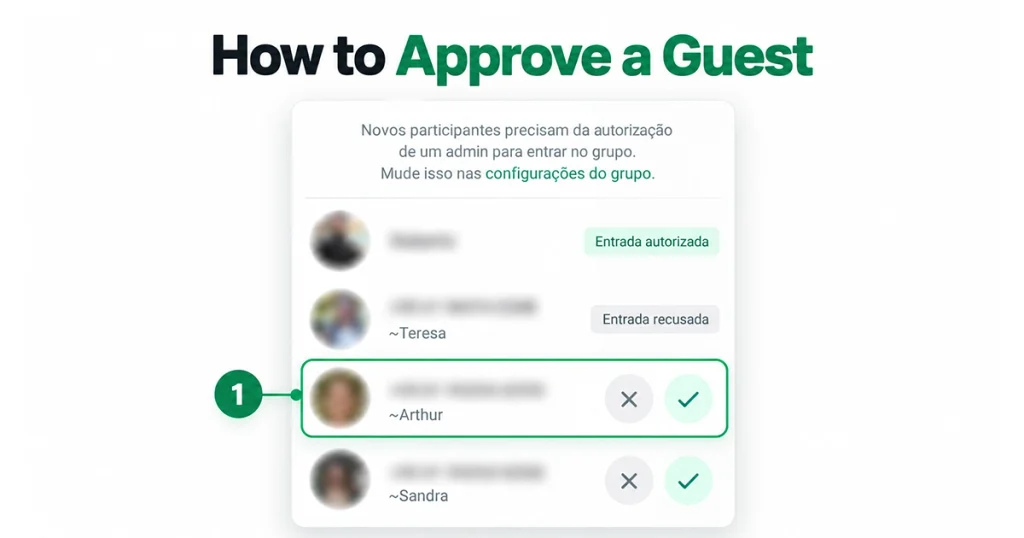
WhatsApp guest calls include a waiting room, so invited guests cannot automatically enter the conversation.
When someone opens your guest call link and requests access, they remain in the waiting room until you admit them.
As the host, you can:
- Review incoming guest requests.
- Approve a guest and allow them into the call.
- Deny someone access.
- Remove a guest after they have joined.
Guest approval is mandatory for people joining without a WhatsApp account.
This means sharing a link doesn’t automatically give someone access to your conversation.
For additional host controls and waiting-room information, visit WhatsApp’s call link and waiting-room support guide.
Are WhatsApp Guest Calls Free and Secure?
Yes. Meta confirms that WhatsApp guest calls are free, end-to-end encrypted, and have no time limits.
End-to-end encryption protects call content so that only participants’ devices can access the conversation.
WhatsApp also limits the information guests can access. A guest cannot see other participants’ phone numbers, use the call to send WhatsApp messages, or directly add new participants.
There are still a few practical privacy precautions worth following:
- Only open call links sent by people you trust.
- Check who has been admitted before discussing private information.
- Avoid sharing passwords, banking details, or other sensitive data through screen sharing.
- Leave a call if you do not recognize the host or participants.
You can learn more about call privacy through WhatsApp’s official voice and video calling information.
Note: WhatsApp does not charge for the call itself, but your internet or mobile data provider may charge for data usage.
WhatsApp Guest Calls Not Working? Try These Fixes
If you cannot join a WhatsApp call without an account, the issue may involve browser permissions, a bad invitation link, host approval, or feature availability.
1. Guest call link isn’t opening
Try copying the complete invitation link and opening it directly in a current computer browser.
If it still fails, ask the host to generate a new call link. WhatsApp says unused call links can expire after 30 days.
See WhatsApp’s call link instructions for additional details.
2. You’re stuck in the waiting room
Being in the waiting room doesn’t necessarily mean the feature has stopped working.
Guest participants cannot enter until the host approves them.
Contact the person who invited you and ask them to check their pending guest requests.
3. Microphone or camera isn’t working
If other participants cannot hear or see you:
- Check that your microphone or camera is connected.
- Open your browser’s website permission settings.
- Allow microphone access and, for video, camera access.
- Check whether another application is using the microphone or camera.
- Rejoin the call after correcting the permissions.
WhatsApp’s video calling support article explains the equipment and permissions needed for browser calls.
4. Guest calling option is missing
WhatsApp began rolling out guest calling on October 14, 2026.
If you don’t see the option to create or use guest calls, update WhatsApp to the latest available version and check again after the rollout reaches your account.
The rollout status was also reported by WABetaInfo.
5. Call keeps disconnecting
Try the following:
- Check your internet connection.
- Switch to a more stable Wi-Fi network if available.
- Close unnecessary browser tabs or bandwidth-heavy applications.
- Reopen the invitation link.
- Ask the host to create another link if the original no longer works.
For more guidance on existing WhatsApp calls, see the WhatsApp group voice calling help page.
Can You Join a WhatsApp Call in a Browser Without the App?

Yes. This is one of the biggest benefits of WhatsApp guest calls.
If someone invites you to a guest call, you can open the link on your computer, enter your name, and request admission. You do not have to install WhatsApp or register an account.
However, there is an important difference:
WhatsApp Web calling lets WhatsApp account holders make and receive calls through a browser. WhatsApp guest calling lets someone without an account participate through an invitation.
WhatsApp introduced web calling earlier in July 2026, as documented in Meta’s official web calling announcement.
For account holders, WhatsApp also provides browser voice calling instructions and video calling instructions.
What’s Next for WhatsApp Guest Calling?
Meta has also announced upcoming integrations with Google Calendar and Microsoft Outlook.
According to the company’s October 14 announcement, users will be able to create WhatsApp call links through supported calendar integrations, making it easier to schedule calls with people who don’t have WhatsApp accounts.
These integrations are planned for later in 2026. They should not be confused with the guest calling feature available at launch.
The company hasn’t announced a specific release date for the calendar integrations.
Frequently Asked Questions About WhatsApp Guest Calls
Can I join a WhatsApp call without an account?
Yes. Open a guest call link in a supported computer browser, enter your name, and wait for the host to approve your request. No WhatsApp account is required.
Do I need to download WhatsApp to join a guest call?
No. WhatsApp guest calls allow invited participants to join directly from a computer browser without downloading the application.
Can I start a WhatsApp call without an account?
No. Only people with WhatsApp accounts can create call links. People without accounts can join as guests when invited.
How many people can join WhatsApp guest calls?
WhatsApp guest calls support up to 32 participants, including one-on-one and group conversations.
Are WhatsApp guest calls free?
Yes. WhatsApp does not charge for guest calls, and there is no call time limit. Normal internet data charges may still apply.
Can I join WhatsApp guest calls on my phone?
WhatsApp’s launch instructions describe guests joining through a computer browser. Mobile browser support has not been confirmed as part of those instructions.
Can guests see my phone number?
No. WhatsApp says guest participants cannot view the other participants’ phone numbers.
Can guests share their screens?
Yes. Guests can share their computer screens during supported WhatsApp guest calls.
Can I invite someone who does not have WhatsApp installed?
Yes. Create a call link from your WhatsApp account and send it to them through another communication service. They can open the link in their computer browser.
Why can’t I join a WhatsApp guest call?
Check that you’re using the correct invitation link, that your browser has the necessary permissions, and that the host has approved your request. Feature rollout or browser compatibility may also affect access.
Final Thoughts
WhatsApp guest calls make it easier to connect with people who don’t use WhatsApp.
Instead of requiring everyone to install the same app and create an account, the host can simply share a call link. Guests open it in a computer browser, enter their name, and wait for approval.
With free encrypted calls, up to 32 participants, screen sharing, and no time limits, the feature could be particularly useful for remote meetings, tutoring sessions, family conversations, and occasional calls.
For the latest official information, visit the WhatsApp Blog or the Meta Newsroom.





Add your first comment to this post