
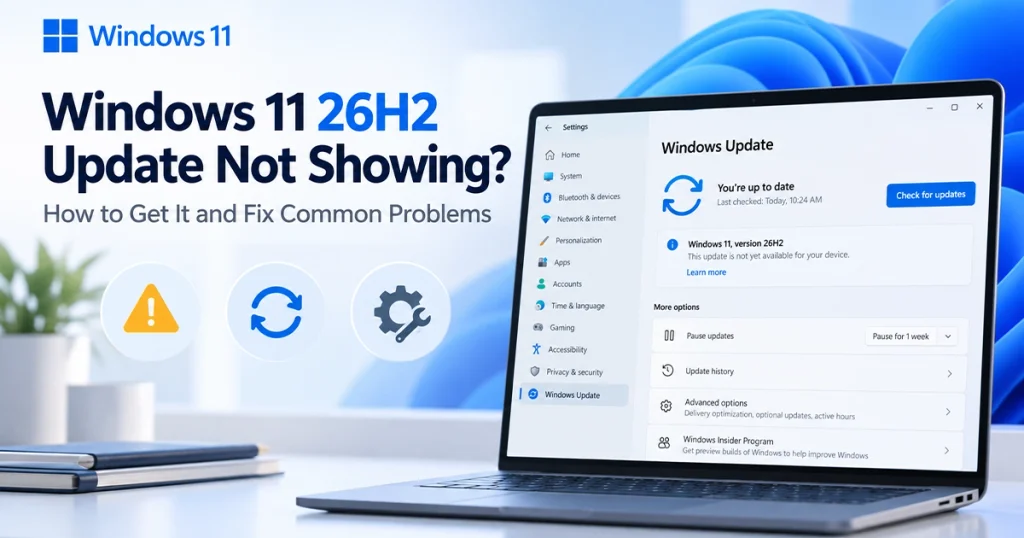
If the Windows 11 26H2 update is not showing on your PC, that does not necessarily mean anything is wrong.
Microsoft made Windows 11 version 26H2 generally available on September 29, 2026, but it is rolling the update out gradually. Eligible PCs running Windows 11 24H2 or 25H2 are receiving it in phases, and Microsoft may temporarily withhold it from a device if there is a known compatibility risk.
The first thing to try is:
Settings → Windows Update → turn on “Get the latest updates as soon as they’re available” → Check for updates.
Microsoft specifically recommends enabling that option if you want to be among the first devices offered 26H2.
If it still doesn’t appear, do not immediately force-install it. Check the steps below first.
Quick Answer: Why Windows 11 26H2 Isn’t Showing
There are five common reasons:
- Microsoft hasn’t reached your PC in the phased rollout yet.
- Your PC is under a safeguard hold because of a compatibility problem.
- You’re missing prerequisite Windows updates.
- Windows Update itself has a temporary problem.
- Your particular Windows version or hardware doesn’t use the normal 24H2/25H2 → 26H2 upgrade path.
Microsoft says the rollout will expand over the coming months rather than appearing on every PC on launch day.
So if Windows Update says your system is current, waiting can genuinely be the correct solution.
First: Check Which Windows Version You Have
Before troubleshooting, check your current version.
- Press Windows + R.
- Type
winver. - Press Enter.
- Look for the version number.
For the normal consumer rollout, Microsoft says Windows 11 26H2 is being offered to eligible devices running Windows 11 24H2 and 25H2.
That matters because 26H2 uses the same servicing foundation as those releases. Microsoft describes it as a relatively lightweight upgrade delivered through an enablement package, rather than a complete operating-system replacement.
Windows Central also describes 26H2 as an enablement-style update rather than a major platform change.
Method 1: Turn On “Get the Latest Updates”
This is the safest first method.
Go to:
Settings → Windows Update
Then enable:
Get the latest updates as soon as they’re available
After turning it on:
- Select Check for updates.
- Let Windows install any pending cumulative updates.
- Restart your PC if requested.
- Return to Windows Update and check again.
Microsoft says users with this setting enabled are among the first eligible devices offered Windows 11 26H2.
Still not appearing?
That may simply mean Microsoft has not yet cleared your specific device.
Do not assume Windows Update is broken.
Method 2: Install Every Pending Windows Update First
Before trying to force 26H2, install existing updates.
Go to:
Settings → Windows Update → Check for updates
Install everything Windows offers, restart the PC, and check again.
Because 26H2 shares a servicing foundation with 24H2 and 25H2, keeping the current installation fully patched reduces the chance of a prerequisite preventing the enablement update from appearing.
Microsoft’s general update troubleshooting guide also recommends installing pending updates and restarting before moving to more disruptive fixes.
Method 3: Run the Windows Update Troubleshooter
If Windows Update appears stuck, displays an error, or repeatedly fails to check for updates, run Microsoft’s troubleshooter.
Go to:
Settings → System → Troubleshoot → Other troubleshooters → Windows Update → Run
Microsoft also offers automated Windows Update diagnostics through the Get Help app.
After it finishes:
- Restart your computer.
- Open Settings → Windows Update.
- Select Check for updates again.
If the update is still absent but Windows Update itself works normally, Microsoft’s staged rollout is a more likely explanation.
Can You Manually Install Windows 11 26H2?
Yes.
Microsoft’s official Windows 11 download page now identifies Windows 11 2026 Update, version 26H2 as the current release.
Microsoft provides three main installation options:
- Windows Update
- Windows 11 Installation Assistant
- Installation media / ISO
However, Windows Update remains the safest option for most people because Microsoft can apply a safeguard hold if it detects a known compatibility issue.
Method 4: Use Windows 11 Installation Assistant
If you have a supported PC and don’t want to wait for the staged rollout, Microsoft’s Installation Assistant is the simplest official manual method.
Go to Microsoft’s Windows 11 download site and select Download Now under Windows 11 Installation Assistant.
Before you do this, make a backup of anything important.
Microsoft recommends backing up files before upgrading Windows.
Important ARM limitation
Microsoft says Windows 11 Installation Assistant does not run on ARM-based PCs; that installer is intended for x64 systems.
Don’t use unofficial installers simply because Microsoft’s tool doesn’t support your hardware.
Method 5: Use the Official Windows 11 ISO
Microsoft also provides an official Windows 11 ISO.
This can be useful when:
- Windows Update repeatedly fails.
- You need installation media.
- You’re upgrading multiple PCs.
- You need to repair or reinstall Windows.
But this should not be the first solution for someone whose only problem is that 26H2 has not appeared yet.
Microsoft explicitly advises users to review Windows release-health information before installing.
Don’t Bypass a Windows 11 26H2 Safeguard Hold Just to Get the Update
This is one of the most important parts of the guide.
Microsoft says its controlled rollout can apply a safeguard hold when the company identifies a known compatibility issue that could negatively affect a particular device.
In other words, if Windows Update isn’t offering 26H2, Microsoft may know something about your hardware or software combination that makes delaying the upgrade safer.
If your PC is working normally, I would not recommend forcing the update solely because another PC already received it.
The rollout timing is intentionally different across devices.
Windows 11 26H2 Known Problems
As of Microsoft’s current release-health information, the main published 26H2 issues include:
- USB audio devices failing to start or produce sound.
- Black-screen or desktop-loading problems in certain environments.
- Domain trust failures on some managed devices.
Microsoft currently marks these issues as mitigated, but that does not mean every possible symptom on every device has disappeared.
Because this page changes as Microsoft fixes problems, it is the source I would check first before installing 26H2.
Windows 11 26H2 Audio Not Working: What to Do
Microsoft has documented a specific problem affecting some USB Audio Class 1.0 devices.
Possible symptoms include:
- No audio output.
- Device Manager showing Code 10.
- Volume controls stuck at zero.
- Sound settings becoming unavailable.
- Problems with some multichannel audio modes.
This does not mean all Windows 11 audio devices are affected.
The known issue is specifically associated with some USB Audio Class 1.0 hardware.
Try These Audio Fixes in Order
1. Install Any New Windows Updates
Go to:
Settings → Windows Update → Check for updates
Microsoft recommends installing pending updates first when sound stops working following a Windows update.
2. Disconnect and Reconnect the USB Audio Device
Try another USB port where practical.
Then restart Windows.
3. Check Device Manager
Open Device Manager and expand:
Sound, video and game controllers
Look for your audio device and check whether Windows shows a Code 10 or another warning.
Microsoft provides separate instructions for restoring missing or undetected audio devices.
4. Update the Audio Driver
In Device Manager:
- Right-click the audio device.
- Select Update driver.
- Restart Windows.
If Windows cannot locate an appropriate driver, check the computer or audio-device manufacturer’s support site.
Microsoft also documents driver reinstall steps in its general audio troubleshooting guide.
5. If Multichannel Audio Fails, Test Stereo
Microsoft has documented cases where some affected USB devices fail in multichannel configurations even though simpler audio modes work.
That makes switching temporarily to stereo useful as a diagnostic step.
Do not assume changing formats permanently solves Microsoft’s underlying compatibility issue.
Windows 11 26H2 Black Screen After Sign-In
Microsoft has also acknowledged a black-screen and desktop-loading issue.
However, the context matters.
Microsoft says the problem has been observed primarily on Azure Virtual Desktop hosts using FSLogix, especially with some existing user profiles.
So this should not be described as a widespread black-screen bug affecting every ordinary Windows 11 home PC.
Symptoms documented by Microsoft include:
- Black screen after signing in.
- Desktop failing to start automatically.
- Windows Explorer crashes.
- Inability to reach the desktop normally.
Microsoft’s Temporary Black-Screen Workaround
If you’re affected and can open Task Manager:
- Press Ctrl + Shift + Esc.
- Select Run new task.
- Enter:
explorer.exe
- Select OK.
Microsoft lists manually starting Explorer as a temporary mitigation for this particular issue.
For a regular consumer PC showing a black screen for a different reason, Microsoft’s Windows recovery tools may be more appropriate.
Domain-Joined PCs Have Another Known 26H2 Issue
Businesses should pay attention to another problem Microsoft has published.
Some PCs protected by Credential Guard may lose their secure trust relationship with an on-premises Active Directory domain after 26H2.
The result can be valid domain credentials failing during interactive sign-in.
This is primarily relevant to:
- Company PCs.
- Enterprise environments.
- Domain-joined computers.
- IT administrators.
It is not a typical concern for an ordinary Windows 11 Home laptop.
If your PC is managed by an employer or school, let your IT team control the upgrade rather than manually forcing 26H2.
Is Windows 11 26H2 Safe to Install?
For most compatible consumer PCs, there is no evidence that Windows 11 26H2 is broadly unsafe.
But “safe” doesn’t mean completely bug-free.
Microsoft has already documented some compatibility issues and is deliberately using a staged rollout with safeguard holds.
There are three important reasons 26H2 is somewhat different from a major Windows platform upgrade:
- It shares the same servicing foundation as 24H2 and 25H2.
- Microsoft delivers it through a small enablement package on eligible PCs.
- Many of its features had already arrived through earlier monthly servicing updates.
That should generally make the transition less disruptive than a complete Windows platform change.
Windows Central likewise describes 26H2 as a relatively small enablement update.
Tom’s Hardware also characterizes Microsoft’s goal for this release as a more predictable, lower-disruption update.
Should You Install Windows 11 26H2 Now?
For most home users, my recommendation depends on what Windows Update is doing.
Install it if:
- Windows Update officially offers 26H2 to your PC.
- You have backed up important files.
- You don’t depend on hardware or software listed in Microsoft’s known issues.
- You want to remain on the current supported Windows release.
Consider waiting if:
- Windows Update does not offer it yet.
- You depend on unusual USB audio hardware.
- Your PC is business-managed.
- You use Azure Virtual Desktop/FSLogix.
- You cannot risk downtime right now.
One especially important factor is Windows 11 24H2 support.
Microsoft lists Windows 11 24H2 Home and Pro support as ending on October 14, 2026. Windows 11 25H2 remains supported until October 2027, while 26H2 Home and Pro are supported until October 2028.
So if you’re still using 24H2, remaining there indefinitely is not a good plan.
Back Up Before Installing 26H2
A normal feature update is designed to preserve your personal files, but backups still matter.
Microsoft recommends backing up important files before major Windows upgrades.
If your drive is encrypted, also know where your BitLocker recovery key is stored.
Microsoft warns that it cannot recreate a lost BitLocker recovery key for you.
That is especially useful before using recovery tools or making significant system changes.
How to Roll Back Windows 11 26H2
If 26H2 causes a serious compatibility problem, Windows may let you return to the previous version.
Go to:
Settings → System → Recovery → Go back
Microsoft says the rollback option is normally available for 10 days after upgrading.
Your personal files are retained, but apps, drivers and settings added after the upgrade can be removed.
Do not wait until the tenth day if you already know 26H2 is breaking essential software or hardware.
If Windows 11 26H2 Is Installed but Windows Is Unstable
Don’t jump directly to Reset this PC.
Your troubleshooting order should be:
- Check for newer Windows updates.
- Restart.
- Update the affected driver or application.
- Run the relevant troubleshooter.
- Use Fix problems using Windows Update if appropriate.
- Roll back the feature update if the issue clearly began with 26H2.
- Consider reset or reinstall only after safer options fail.
Microsoft’s recovery guidance specifically places less destructive recovery methods ahead of resetting or reinstalling the PC.
If you do eventually need Reset this PC, remember that installed apps and settings may be removed even if you choose to keep your personal files.
Windows 11 26H2 Update Still Not Showing: What Should You Do?
If you have tried the safe steps and your PC still isn’t offered 26H2, waiting is usually better than forcing the upgrade.
Microsoft has explicitly said the rollout is controlled and phased.
That means there is no requirement for every eligible PC to receive it on the same day.
The safest order is:
- Confirm you’re on 24H2 or 25H2.
- Install all pending updates.
- Turn on Get the latest updates as soon as they’re available.
- Run the Windows Update troubleshooter if Update is malfunctioning.
- Check Microsoft’s 26H2 release-health page.
- Wait if your device still isn’t offered the upgrade.
- Use Microsoft’s Installation Assistant only if you understand the trade-off and have confirmed there is no relevant compatibility issue.
That approach gives you the best chance of getting 26H2 without bypassing protections Microsoft may have put in place for your PC.


Add your first comment to this post