
If you have forgotten your Discord password or want to secure your account with a new password, How to Reset Your Discord Password is a simple process. Discord provides an official password-reset option that sends instructions to the email address associated with your account.
Before you begin, make sure you can access the email address linked to your Discord account. If you no longer have access to that email, recovering the account can be more difficult because Discord says you need access to the associated email to change it. If you’re a beginner and want to learn how to use ChatGPT effectively, explore our complete beginner-friendly guide. Click here to learn how to use ChatGPT step by step. If you suspect your account has been compromised, Discord also recommends resetting your password and enabling Multi-Factor Authentication (MFA).
In this guide, we’ll walk through five simple steps to reset your Discord password.
How to Reset Your Discord Password in 5 Steps
Step 1: Open Discord and Go to User Settings
First, open the Discord app on your device and make sure you are signed in to the account you want to reset.
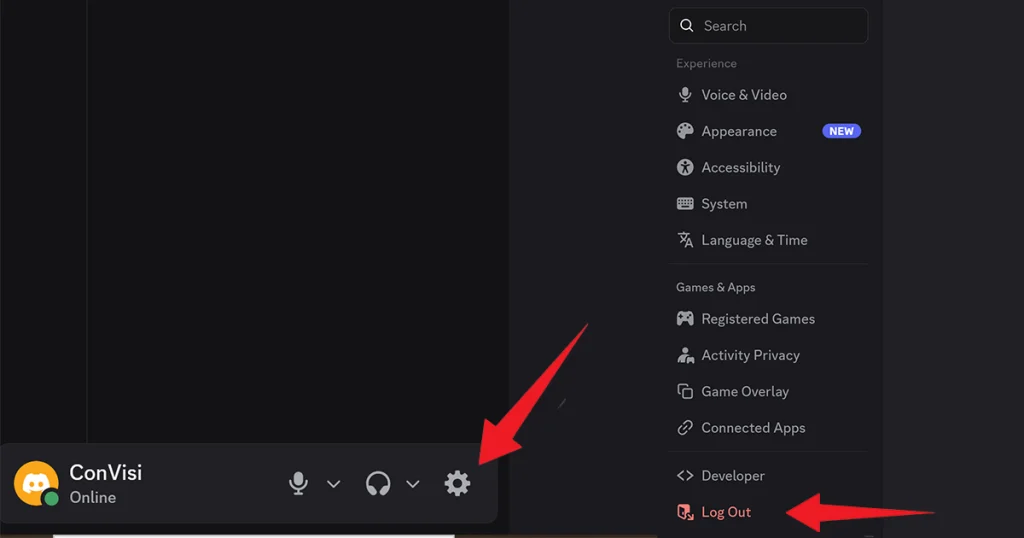
Look at the bottom-left area of the Discord interface. You will see your account information along with several icons, including the microphone, audio/deafen controls, and the User Settings gear icon.
Click or tap the User Settings gear icon to open your account settings.
Scroll down through the settings menu until you find the Log Out option.
Select Log Out to sign out of your Discord account.
Note: Discord’s current official password-reset process can also be started directly from the login screen without first logging out if you are already signed out. (Discord Support)
Step 2: Confirm That You Want to Log Out
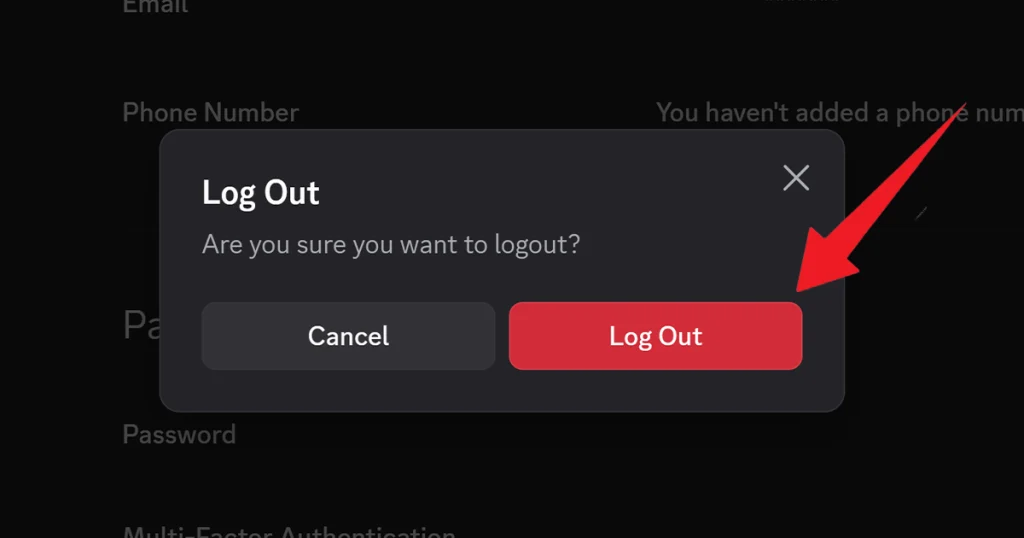
After selecting Log Out, Discord will display a confirmation message asking whether you are sure you want to log out.
If you are certain that you want to continue, confirm the logout.
Discord will then return you to the login screen, where you can begin the password-reset process.
If you are not ready to log out, cancel the message instead and remain signed in.
Step 3: Enter Your Email and Select “Forgot Your Password?”
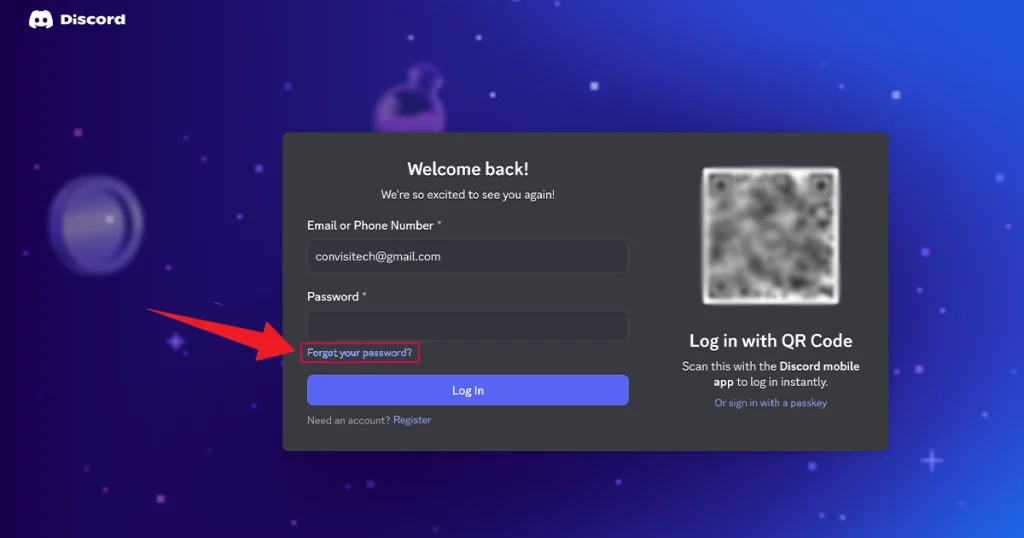
Once you are on the Discord login screen, enter the email address associated with your Discord account.
After entering your email address, look underneath the password field for “Forgot your password?”
Click or tap Forgot your password?
Discord will use the email address associated with your account to send password-reset instructions.
Make sure you enter the correct email address. If you are unsure which email is connected to your Discord account, Discord recommends checking other devices where you may still be logged in or checking your email inboxes for previous Discord messages.
Step 4: Open the Discord Password Reset Email
After requesting the reset, open the inbox for the email address connected to your Discord account.
Look for an email from Discord containing instructions for resetting your password.
Open the email and look for the Reset Password button or link.
Click Reset Password to continue.
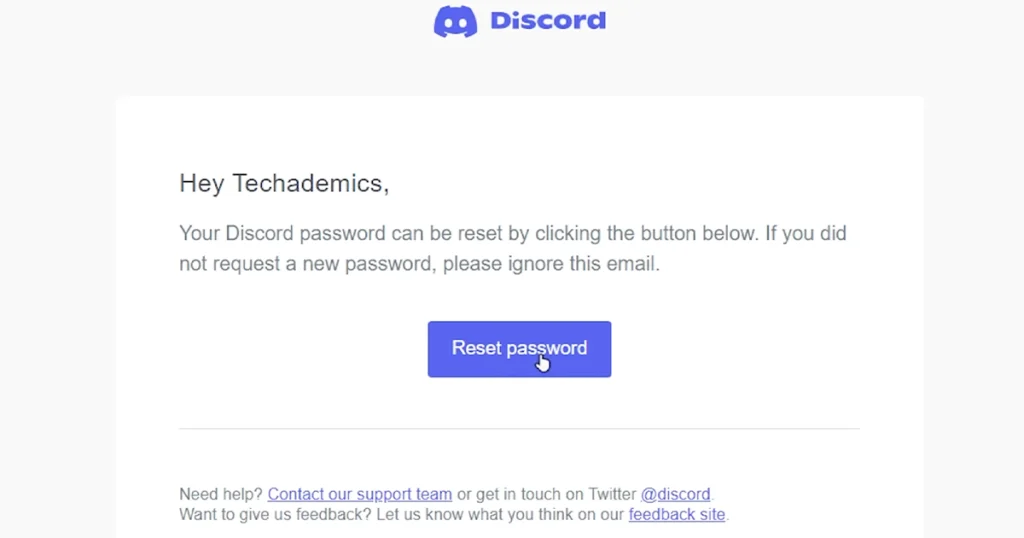
If you don’t immediately see the email, check your Spam, Junk, or other filtered folders before trying again.
Discord’s official instructions confirm that the password-reset email is sent to the email address associated with your account. (Discord Support)
Step 5: Create Your New Discord Password
After clicking the reset link, Discord will take you to the password-reset page.
Look for the field where you can enter your new password. Enter the password you want to use for your Discord account and complete the password-reset process.
For better security, create a strong, unique password that you do not use for other websites or services. Discord requires passwords to contain at least 8 characters, and it recommends using secure, unique passwords.
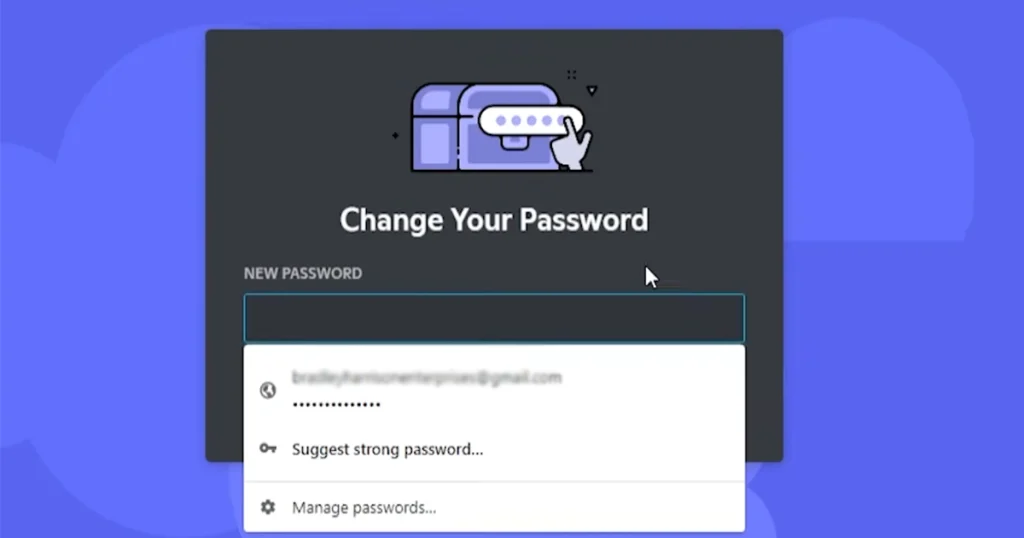
Once you successfully save the new password, you can use it to sign in to your Discord account.
Benefits of Knowing How to Reset Your Discord Password
Knowing How to Reset Your Discord Password can be useful in several situations.
- Recover access: You can regain access if you’ve forgotten your existing password.
- Improve account security: Changing a password can be an important security step if you think someone else may know it.
- Protect your personal information: A strong, unique password makes it harder for unauthorized people to access your account.
- Easy recovery: Discord’s reset process uses the email address connected to your account.
If you suspect your account has been compromised, Discord also recommends resetting your password and enabling Multi-Factor Authentication (MFA).
Disadvantages and Things to Keep in Mind
Although resetting your password is generally straightforward, there are a few things to remember.
- You need access to the email address associated with your Discord account.
- You may need to check your spam or junk folder if the reset email doesn’t appear in your main inbox.
- If you use a new password that you later forget, you may need to repeat the recovery process.
- If your account has MFA enabled, Discord may require an additional verification step during the reset process.
If you have completely lost access to the email address connected to your Discord account, Discord says its support team cannot change that email address for you.
Who Should Use This Discord Password Reset Guide?
This guide is useful for:
- Discord users who have forgotten their password.
- Beginners who don’t know how to recover a Discord account.
- Users who want to replace an old password with a stronger one.
- Anyone concerned that their Discord account may have been accessed by someone else.
- Users who have access to the email address connected to their Discord account.
If you believe someone has compromised your account, don’t stop at changing the password. Discord recommends enabling MFA, reviewing authorized applications, and removing any apps you don’t recognize.
Tips for Creating a Strong Discord Password
When completing How to Reset Your Discord Password, don’t simply choose an easy password that you already use elsewhere.
Instead:
- Use at least 8 characters.
- Choose a password you don’t use on another account.
- Consider using a password manager to generate and store a strong password.
- Avoid obvious information such as your name or username.
- Enable Multi-Factor Authentication for additional account protection.
Discord specifically recommends using a strong, unique password and notes that longer passwords are generally more secure.
Final Thoughts
Learning How to Reset Your Discord Password can help you quickly regain access to your account when you forget your password. The basic process involves signing out, entering your registered email, selecting Forgot your password?, opening Discord’s reset email, and creating a new password.
For better protection, use a strong and unique password and enable Multi-Factor Authentication. If you suspect unauthorized access, take additional security measures instead of relying on a password change alone.



Add your first comment to this post