
If you no longer want to use Instagram and want to permanently remove your account, Permanently Delete an Instagram Account, you can delete it directly through Instagram’s Account Center. The process takes a few steps, including selecting a reason and confirming your password. If you only want to control your privacy without deleting your account, you can also learn how to hide your Active Status on Instagram.
Follow the 11 steps below to permanently delete your Instagram account.
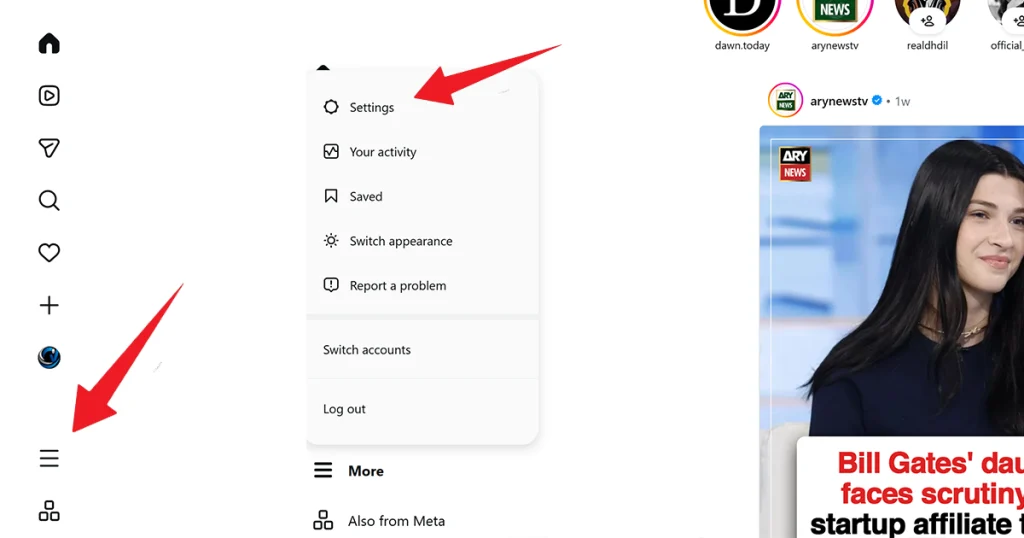
Step 1: Open Instagram and Go to the Menu
Open the Instagram app and go to your profile.
At the bottom of the screen, tap the three-line menu icon. From the options that appear, tap Settings.
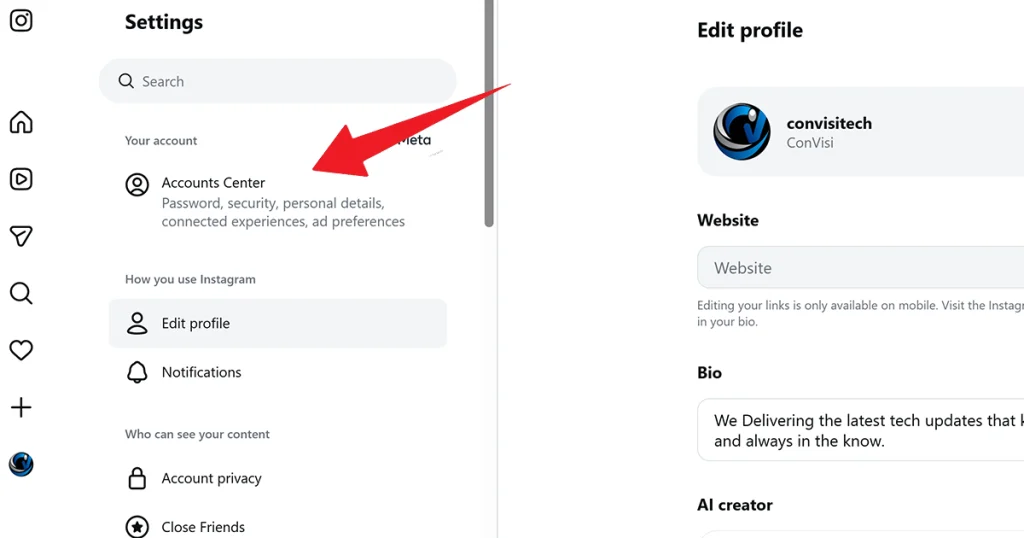
Step 2: Open Account Center
Once the Settings page opens, look for Account Center.
Tap Account Center to continue.
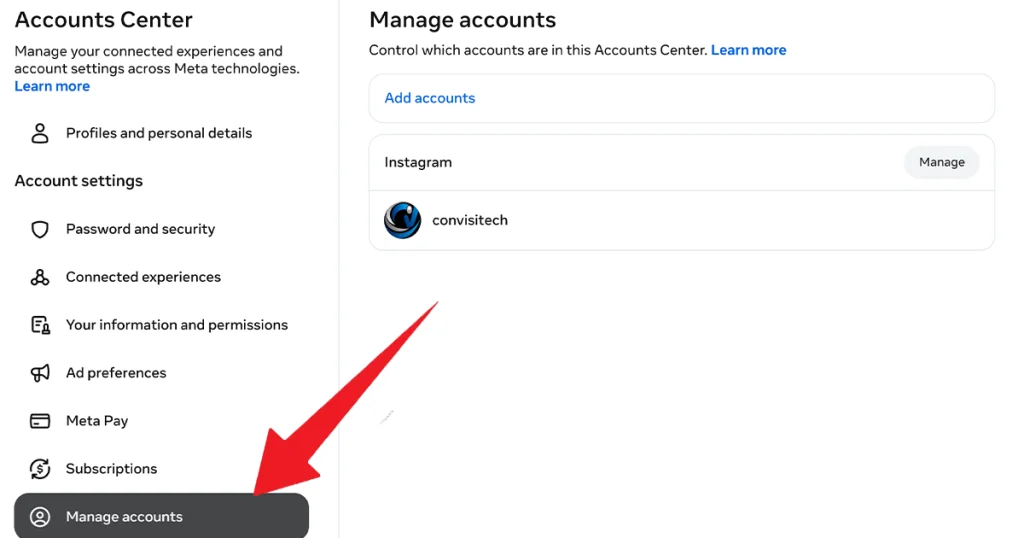
Step 3: Go to Manage Accounts
The Meta Account Center will open.
Find and tap Manage accounts. Your connected Instagram account or accounts will appear. Select the Instagram account you want to delete, then tap Manage.
Step 4: Select Deactivation or Deletion
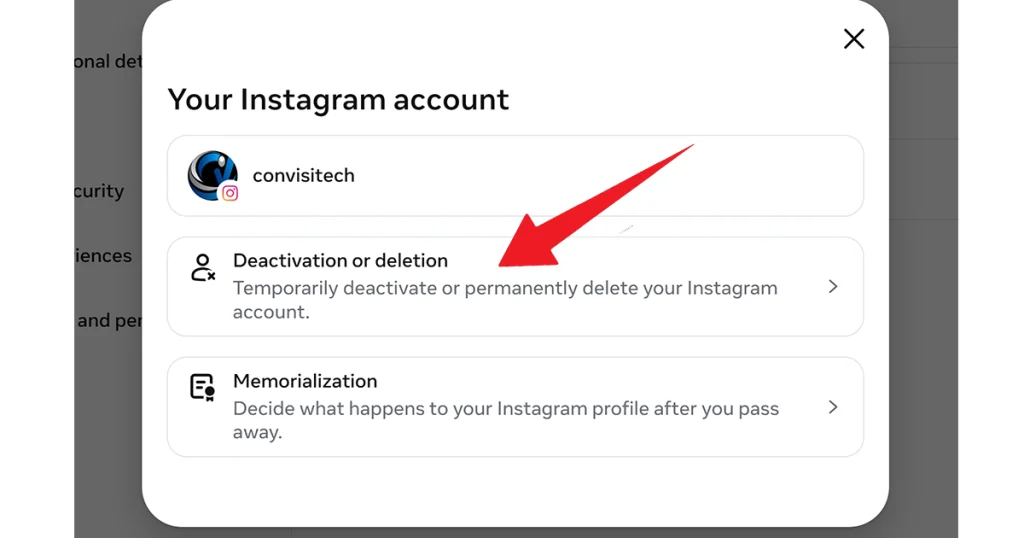
After selecting your account, you will see the Deactivation or deletion option.
Tap Deactivation or deletion to continue.
Step 5: Choose Delete Account
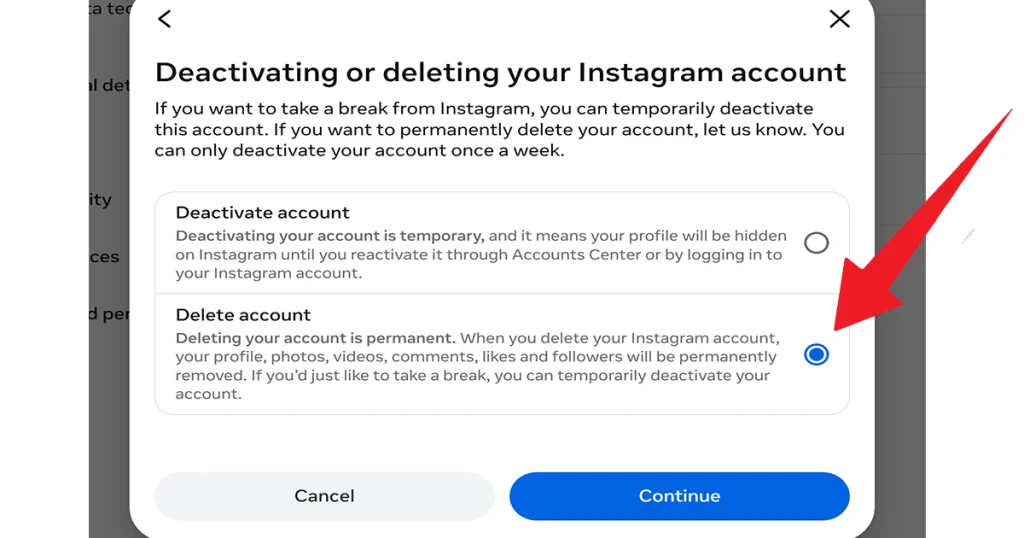
You will now see two options:
- Deactivate account
- Delete account
Since you want to permanently remove your Instagram account, select Delete account and tap Continue.
Step 6: Review What Will Be Deleted
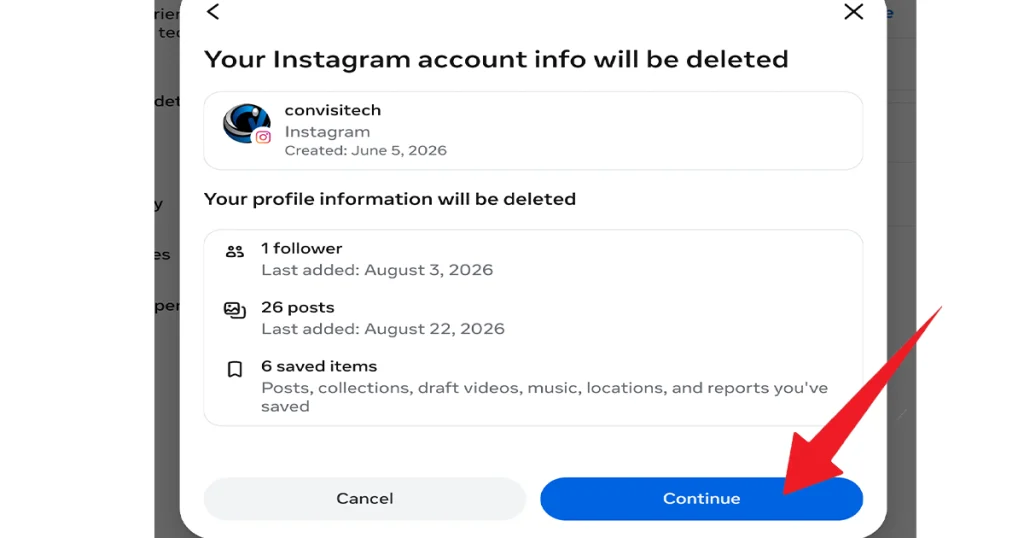
Instagram will show information about what happens when your account is deleted. It will explain which profile information and account data will be removed.
Review the information, then tap Continue.
Step 7: Select Your Reason for Deleting
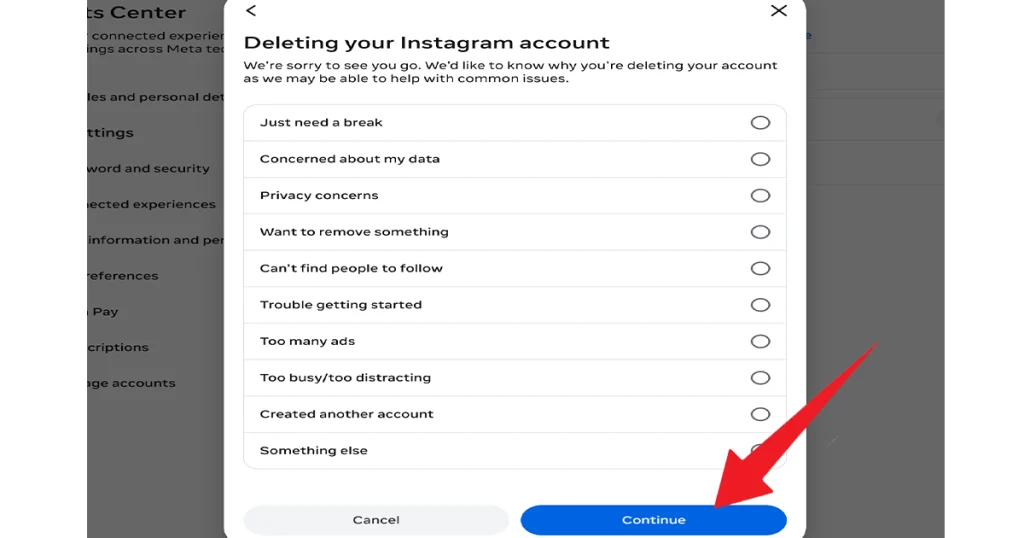
Instagram will ask why you want to delete your account.
Select the reason that best matches your situation and tap Continue.
If your reason is not listed, choose Something else, enter your reason if required, and then tap Continue.
Step 8: Review the Information for Your Selected Reason
Based on the reason you selected, Instagram may show some additional information or suggestions related to your choice.
Review the information. If you still want to delete your account, tap Continue.
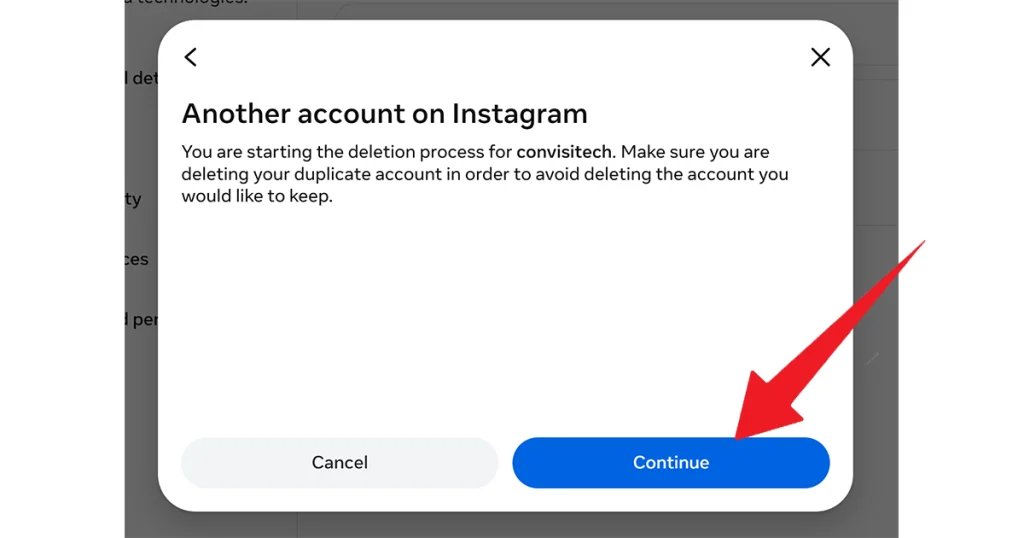
Step 9: Review the Permanent Deletion Information
You will now see information about permanently deleting your account.
Read the information to understand what will happen after deletion. If you are satisfied with your decision, tap Continue.
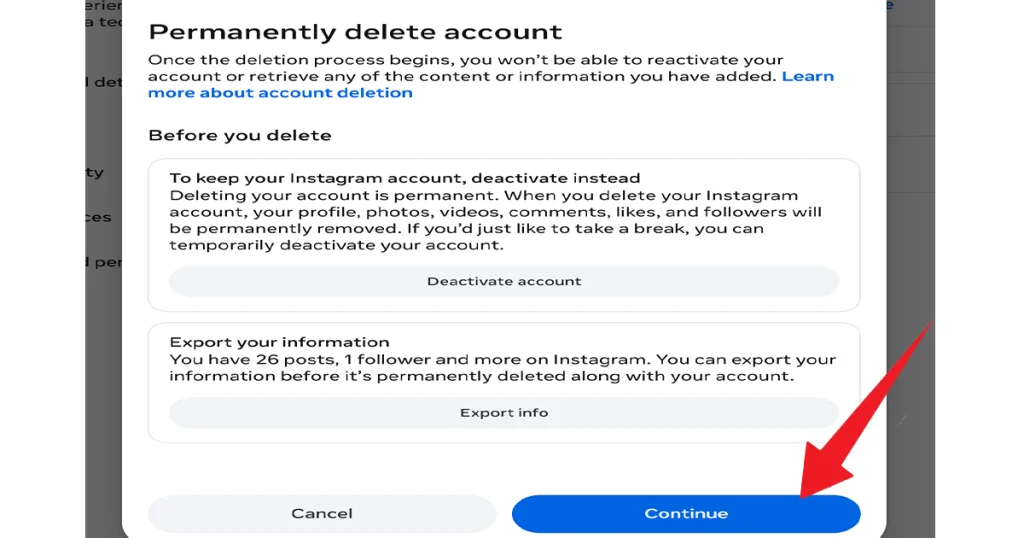
Step 10: Confirm Account Deletion
Instagram will show another confirmation screen explaining that your account will be permanently deleted.
Review the information, then tap Delete account to proceed.
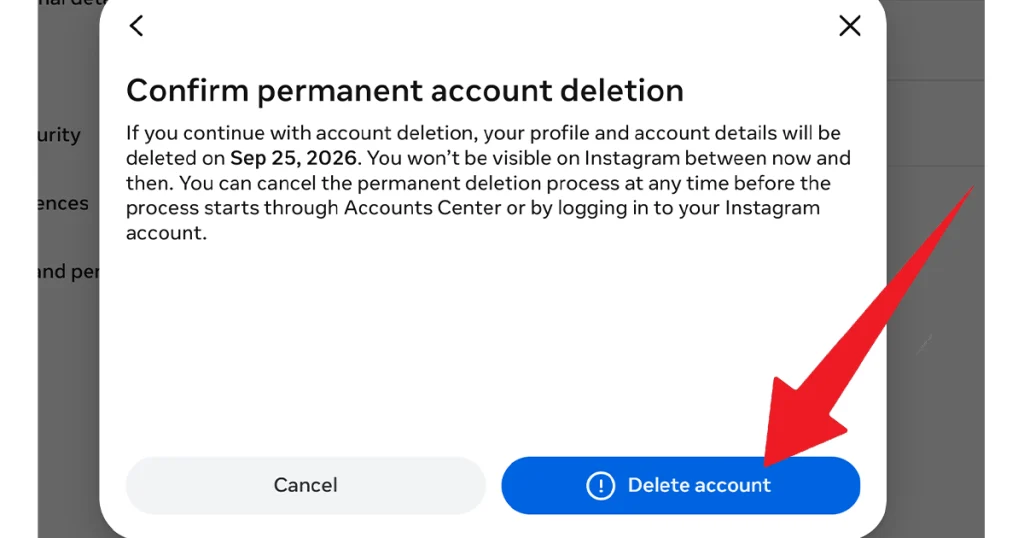
Step 11: Enter Your Password and Confirm
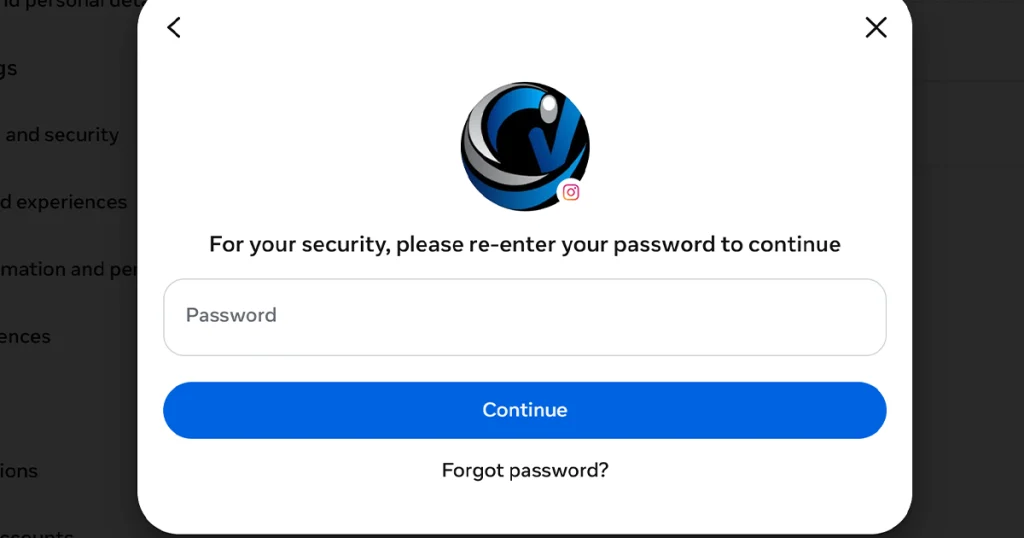
For security, Instagram will ask you to re-enter your password to continue.
Enter your Instagram password and tap Continue.
If you have forgotten your password, use the Forgot password? option to recover or reset it first.
Once you complete the confirmation, your Instagram account deletion request will be submitted.
What Happens After You Delete Your Instagram Account?
Deleting Instagram does not necessarily mean that every piece of data disappears instantly.
Instagram provides a cancellation period after you submit the deletion request. Current 2026 guides generally describe this as 30 days, although the exact terms presented to users can vary by region or account.
During this period, your account is scheduled for deletion.
After the cancellation period expires, the deletion becomes permanent and you should no longer be able to restore the account through normal login.
Meta may also retain certain information for longer periods in backup systems or where required for legal, security, or other legitimate purposes. That does not mean the account remains publicly available.
Can You Cancel Instagram Account Deletion?
Yes, if you are still within the cancellation period shown by Instagram.
If you change your mind, sign back into the Instagram account before the deletion is completed and follow the instructions Instagram displays to cancel the deletion request.
Important: Do not assume that simply uninstalling Instagram will cancel or stop anything. The deletion request is associated with your account, not the Instagram app installed on your phone.
What Happens to Your Instagram Photos and Videos?
Permanent deletion removes the Instagram account and its associated content as the deletion process completes.
This can include content such as:
- Photos
- Videos
- Reels
- Stories
- Comments
- Likes
- Profile information
- Followers and following relationships
- Other account activity
Because the process is designed to permanently remove the account, download anything important before submitting the deletion request.
Current guides consistently recommend backing up your information first.
What Happens to Instagram Direct Messages?
Deleting an account does not necessarily mean that copies of conversations disappear from other people’s inboxes.
For example, messages you previously sent may remain visible to recipients or appear under a generic account identity after your account is removed. ESET notes that deleting your account does not automatically erase copies of messages already present in other people’s inboxes.
If a particular conversation is important, consider what you need to save before deleting your account.
Can You Recover a Permanently Deleted Instagram Account?
Only during the deletion cancellation period, if Instagram still gives you the option to cancel the request.
Once the deletion has been completed, you should consider the account permanently gone.
That is why downloading your data before deletion is important.
What If You Cannot Find the Delete Account Option?
Instagram’s interface can change, and the wording or location of settings may differ between app versions.
If you cannot find the option, try this path:
Instagram → Profile → ☰ → Settings and privacy → Accounts Center → Personal details → Account ownership and control → Deactivation or deletion
Then select the Instagram account and choose Delete account.
If the labels differ, look for Accounts Center, Personal details, and Account ownership and control. These are the key areas used by the current deletion workflow.
You should also make sure that you are logged into the correct account.
What If You Forgot Your Instagram Password?
You generally need access to the account to complete the deletion process.
If you forgot your password:
- Open Instagram.
- Select the option to log in.
- Choose Forgot password? or the relevant password-recovery option.
- Enter your username, email address, or phone number.
- Follow Instagram’s account-recovery instructions.
- Sign back into the account.
- Return to Accounts Center.
- Start the deletion process again.
If you believe someone else has taken control of your account, recover and secure the account first rather than relying on deletion as a security solution.
Can You Delete Instagram Without the App?
Yes.
You can use Instagram through a web browser on a computer or mobile device and access the account settings and Accounts Center.
This can be useful if the Instagram app is not working correctly or you prefer managing the account from a larger screen.
Does Uninstalling Instagram Delete Your Account?
No.
Uninstalling the Instagram app only removes the application from your device.
It does not delete your Instagram account.
Your profile, photos, followers, messages, and other account information remain associated with the Instagram account until you actually submit a deletion request through the account settings.
If your goal is permanent deletion, you must complete the account-deletion process.
Should You Delete or Deactivate Instagram?
Choose Deactivate if:
- You only want a temporary break.
- You may return to Instagram later.
- You want to hide your profile temporarily.
- You do not want to lose your existing account.
Choose Delete if:
- You are finished with Instagram permanently.
- You have backed up anything important.
- You understand that the account will eventually be permanently removed.
- You do not expect to need the account or its content again.
If you are uncertain, deactivation is the safer choice because it does not commit you to permanent deletion.
Conclusion
Permanently deleting an Instagram account is straightforward, but you should make sure you understand what you are giving up before confirming the request. The process starts by opening Instagram’s settings, accessing Accounts Center, selecting your account, choosing Deactivation or deletion, and then selecting Delete account.
You will then need to choose a reason, review Instagram’s deletion information, confirm the deletion date, and complete the final security verification.
If you have important photos, videos, or other information on Instagram, export or save them before submitting the deletion request. If you are not completely sure that you want to leave Instagram permanently, consider deactivating the account instead.
The most important thing is to carefully review the final confirmation screen and the deletion date shown by Instagram before proceeding.





Add your first comment to this post