

Maintaining personal privacy on social media can feel like a full-time job. Whenever you log into Instagram, a small green dot appears next to your profile picture, letting direct message (DM) contacts know you are online.
If you want to scroll through your feed or catch up on Reels without feeling pressured to reply to messages immediately, turning off your online indicator is the easiest solution. This step-by-step guide explains how to hide active status on Instagram across mobile devices and desktop web browsers in just a few quick taps.
Understanding Instagram Active Status
Instagram enables the Activity Status feature by default. This feature shows accounts you follow or previously messaged when you were last active or if you are currently using the app.
What People See When Your Active Status Is On
When this setting remains active, users in your Direct Messages will see:
- A green dot next to your profile icon.
- An “Active now” text indicator in your chat thread.
- Timestamps indicating when you were last online (for example, “Active 15m ago”).
The Two-Way Rule of Activity Status
Instagram operates on a fair-use policy for privacy features. If you hide your online presence, you also lose the ability to see the activity status of other accounts. You cannot view someone else’s green dot or last active time while keeping your own hidden.
How to Hide Active Status on Mobile (Android & iPhone)
The process to disable your online status is identical on both iOS and Android platforms. Follow these steps inside the official Instagram app:
Step 1: Access Your Profile
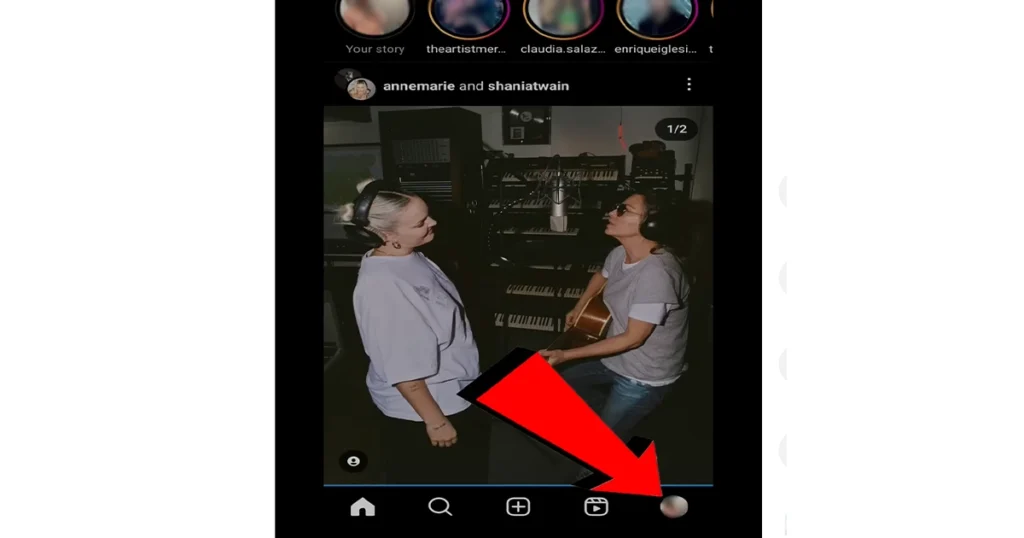
Launch the Instagram app on your smartphone. Tap your profile icon located in the bottom-right corner of the screen to open your main profile page.
Step 2: Open Settings and Activity
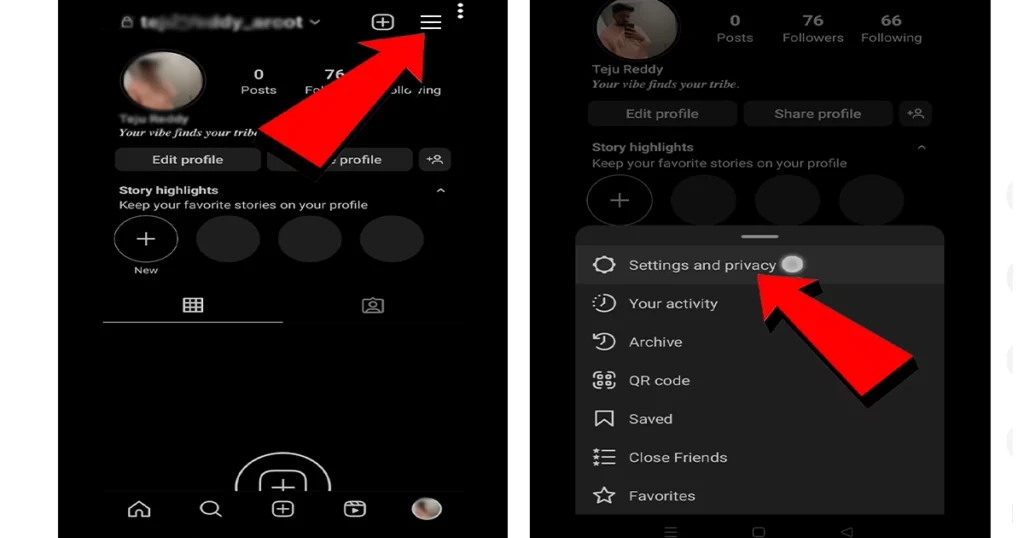
Tap the menu icon (three horizontal lines) in the top-right corner of your profile. Select Settings and activity from the menu overlay.
Step 3: Navigate to Message Options
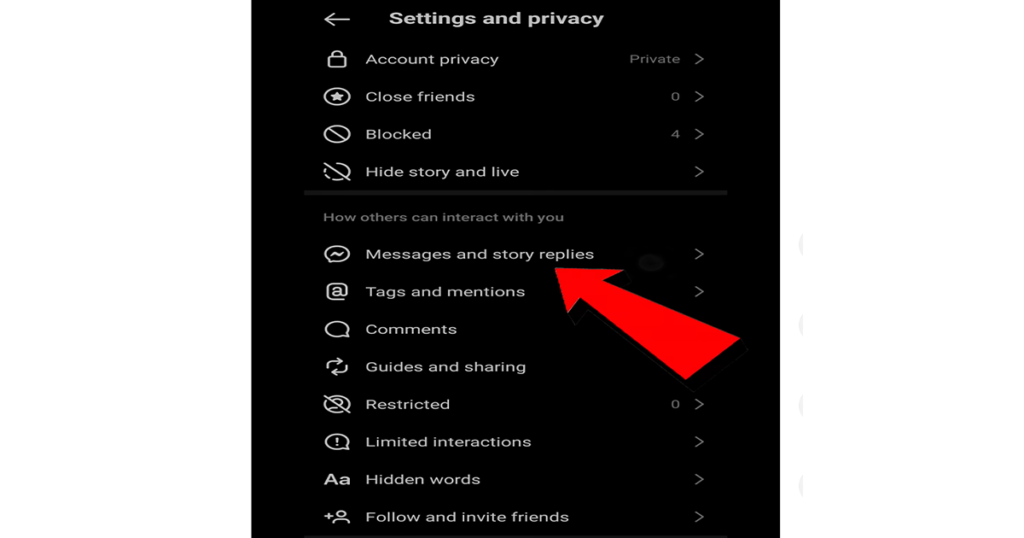
Scroll down to the section titled How others can interact with you. Tap on Messages and story replies.
Step 4: Toggle Off Activity Status
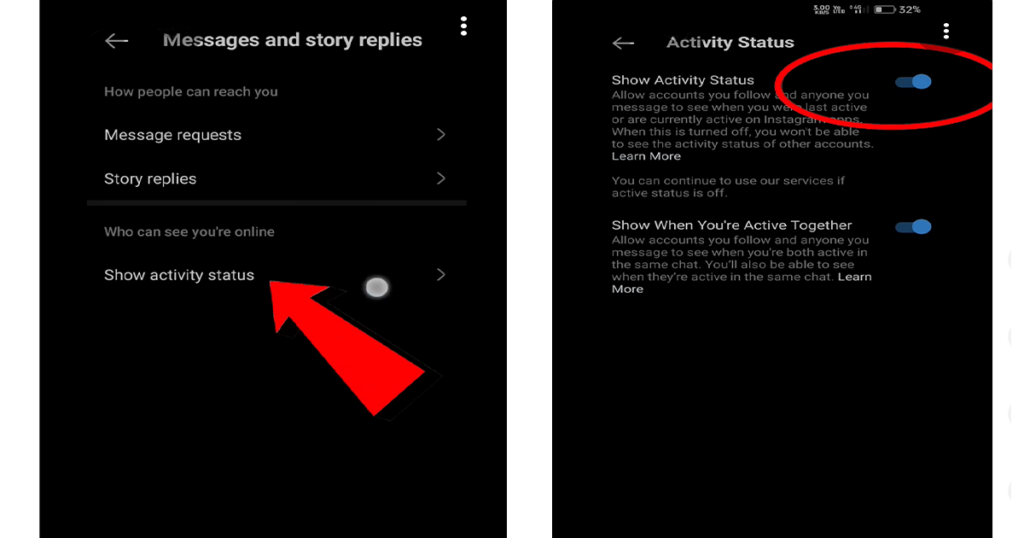
Select Show activity status. Toggle off the switch next to Show Activity Status. Once disabled, the green dot and activity timestamps will instantly vanish from your account.
How to Hide Active Status on Instagram Web (Desktop)
If you use Instagram on a web browser via laptop or desktop, you can adjust your privacy settings directly from the web interface.
Step 1: Open Instagram Settings
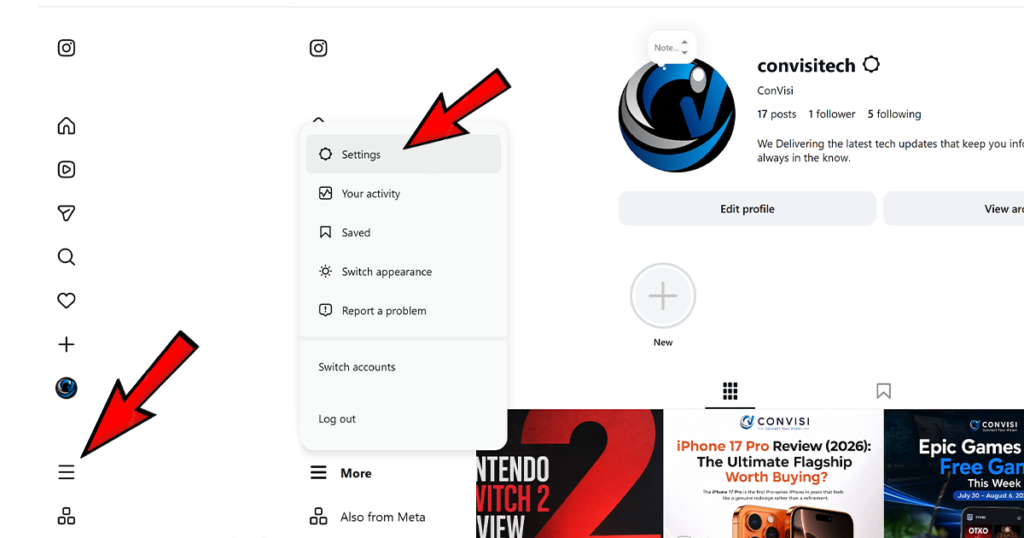
Navigate to Instagram’s website in your web browser and log into your account. Click the More icon (three horizontal lines) in the bottom-left navigation bar, then select Settings.
Step 2: Manage Interaction Settings
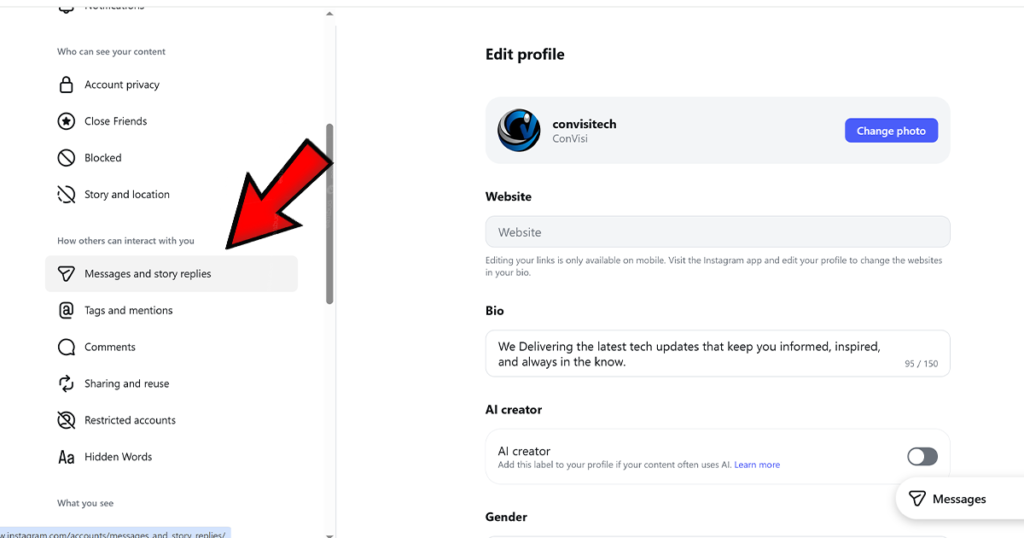
In the left sidebar menu, click on Messages and story replies or Privacy and security depending on your current web layout.
Step 3: Turn Off Show Activity Status
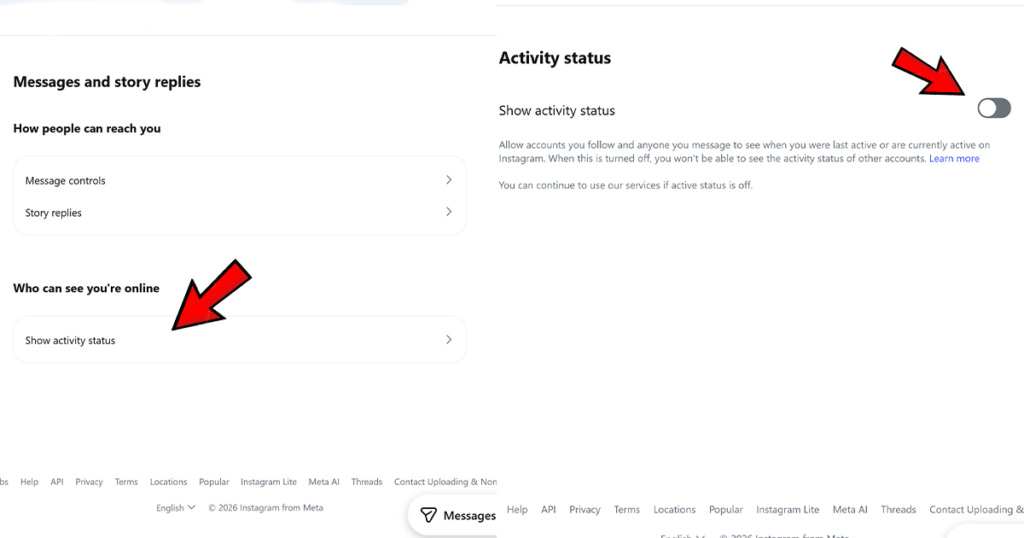
Locate the Show activity status option. Uncheck or toggle off the setting allowing users to see when you are active.
Additional Privacy Settings to Consider
Hiding your active status stops people from seeing when you are logged into the app, but it does not cover every interaction signal.
Read Receipts vs. Active Status
Turning off active status does not stop message read indicators. When you open a Direct Message, the sender will still see a “Seen” tag unless you separately turn off Read Receipts inside your message settings.
Private Account Setting
If you want more control over who can view your Instagram content, consider setting your account to private. New followers will need to send a request before they can see your posts, stories, or profile details. For added security, you can also set up two-factor authentication (2FA) on Instagram, which helps protect your account from unauthorized access even if someone knows your password.
9. Conclusion
Taking control of your digital privacy does not require drastic measures like deleting social media apps. By toggling off active status on Instagram, you gain freedom to browse, post, and view stories at your own pace without feeling obligated to reply instantly. Follow the simple step-by-step instructions above on mobile or desktop to reclaim your quiet time online.




Add your first comment to this post