

ChatGPT is no longer just a text-only chatbot—it’s a comprehensive AI workspace equipped with specialized tools, custom extensions, and granular controls. To get the most out of ChatGPT, you need to understand both its built-in tools and its settings menu.
Part 1: How to Write Good Prompts for AI
Writing a good prompt is less about using “magic words” and more about giving the AI enough context to produce exactly what you want. Professional prompt writers think like project managers: they define the objective, provide context, set requirements, and explain what success looks like.
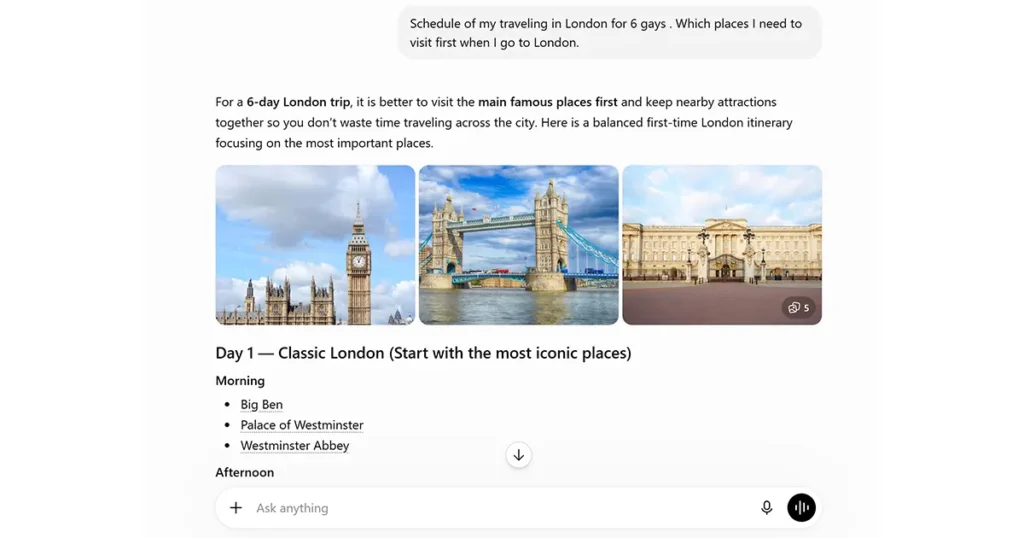
The Professional Prompt Formula
A high-quality prompt usually contains these parts:
Role → Goal → Context → Requirements → Constraints → Output Format → Examples (Optional)
Professional Prompting Tips
- Be specific instead of general.
- State your goal clearly.
- Provide relevant background.
- Define the audience.
- Specify the desired tone.
- Mention the output format.
- Set constraints (what to avoid).
- Include quality standards (for example, “accurate,” “well-researched,” or “beginner-friendly”).
- Break complex tasks into sections.
- Refine your prompt based on the first response if needed.
A Simple Prompt Framework to Remember
You can use the acronym R-G-C-R-C-O:
- Role – Who should the AI act as?
- Goal – What should it accomplish?
- Context – Why and for whom?
- Requirements – What must be included?
- Constraints – What should be avoided?
- Output – What format should the answer have?
Mastering these elements will help you write prompts that are clearer, more reliable, and more likely to produce the exact results you want.
Part 2: How to Use ChatGPT Tools
ChatGPT comes equipped with several core tools designed for specific workflows. You can trigger these tools dynamically by prompting ChatGPT directly, or by selecting them via the + icon or Tools menu in the message bar.
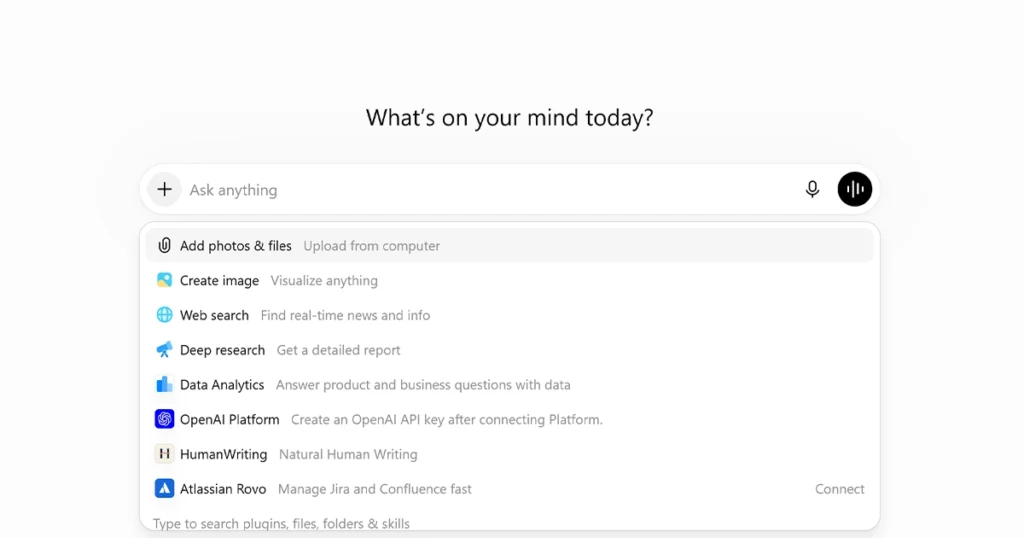
1. Web Search
- What it does: Allows ChatGPT to fetch live web data, verify current events, and provide hyperlinked inline citations.
- How to use: Click the
+(Plus) button in the prompt box and choose Web Search, or ask explicitly: “Search the web for…”
2. Deep Research
- What it does: A specialized mode for deep-dive investigation. ChatGPT creates a multi-step research plan, scans dozens of sources, and generates a structured report with comprehensive references.
- How to use: Click
+and select Deep research. Ideal for market intelligence, technical whitepapers, and academic overviews.
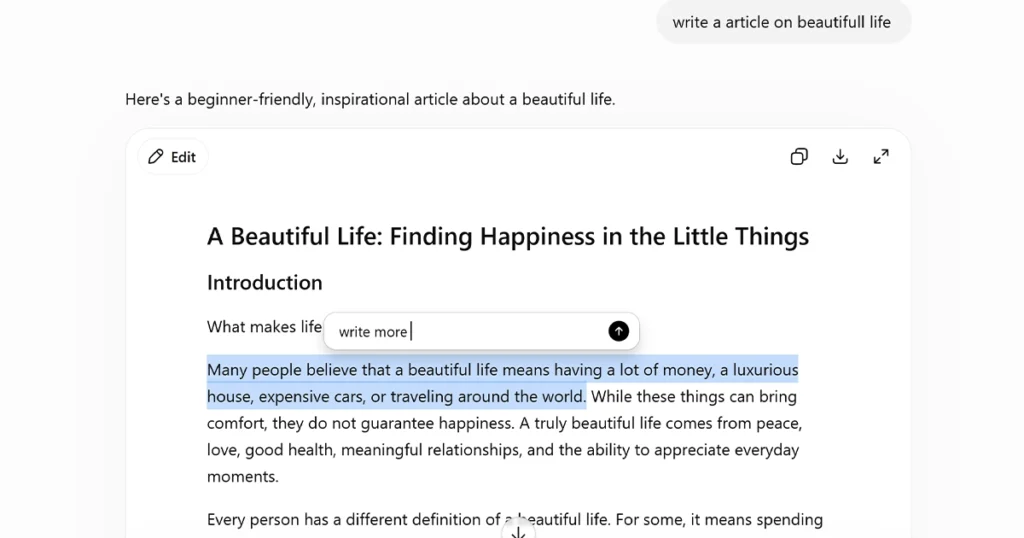
3. Canvas
- What it does: Opens an interactive split-screen side panel alongside your chat window. It lets you edit prose, refactor code, highlight specific sentences for inline rewrites, or alter document length without cluttering the chat history.
- How to use: Type “Open canvas to write a blog post” or click Edit in canvas from a chat response.
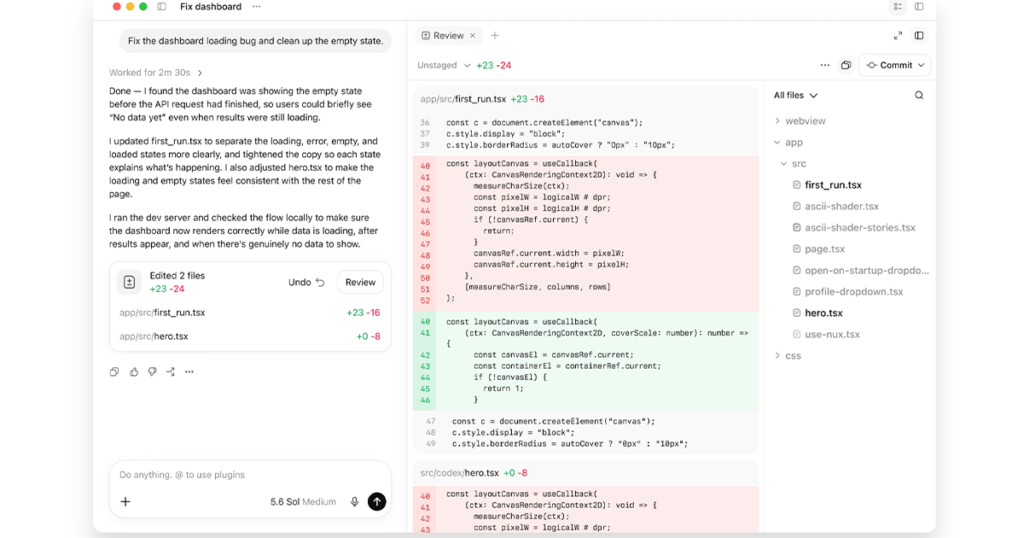
4. Code Execution & Data Analysis
- What it does: Runs a isolated Python environment in the background. ChatGPT can process raw CSVs/spreadsheets, solve math equations, convert file formats, and render interactive visual charts.
- How to use: Drag and drop a file (PDF, Excel, CSV) into the prompt bar and tell ChatGPT what to analyze.
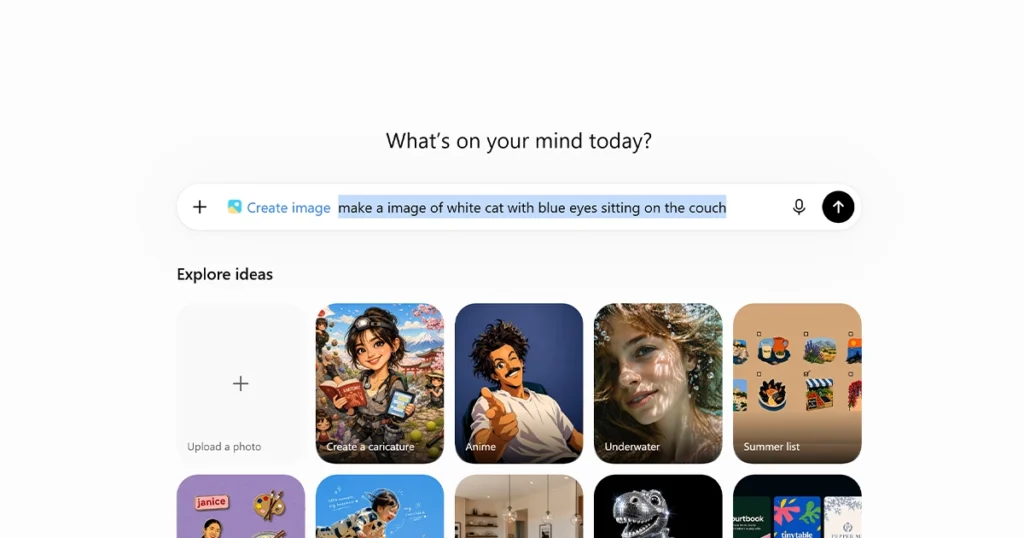
5. Image Generation & Editing
- What it does: Creates original images from text descriptions or modifies uploaded photos using natural language.
- How to use: Prompt directly with “Generate an illustration of…” or upload an image and ask for specific adjustments (e.g., “Change the lighting to sunset”).


6. Voice Mode
- What it does: Enables conversational, low-latency spoken dialog with distinct AI voices.
- How to use: Click the Microphone or Waves icon in the desktop app or mobile app to speak directly with ChatGPT.

7. Custom GPTs & App Integrations
- What it does: Lets you run specialized assistants (e.g., Canva, Google Drive, diagram generators) or create your own custom agents trained on your specific documentation.
- How to use: Mention them directly using
@in the chat window (e.g.,@Canva create a slide deck) or browse the GPT Store from the sidebar.
Part 3: Master Every ChatGPT Setting
To access your settings, click your Profile Picture / Name in the bottom-left corner of the web interface (or top menu on mobile) and select Settings.
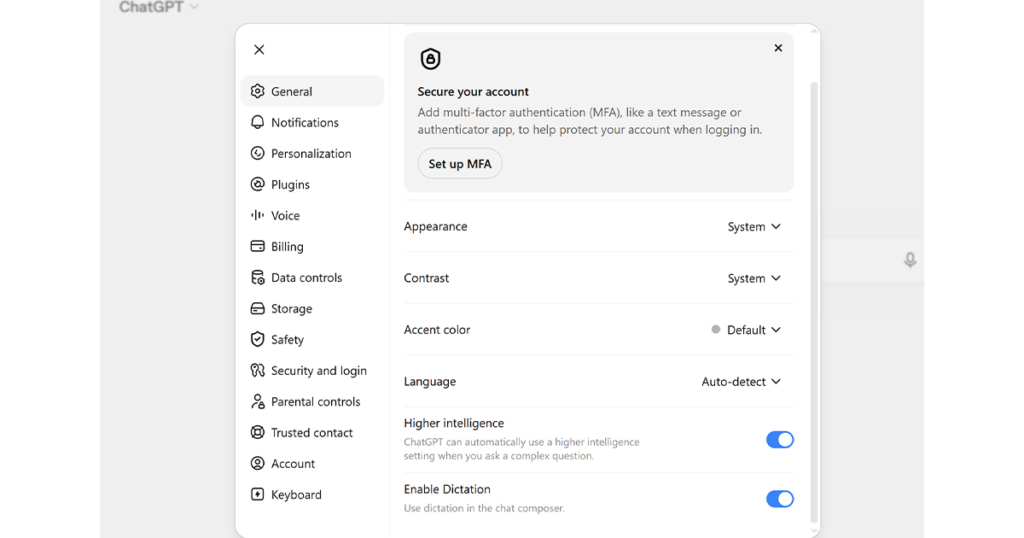
1. General Settings
- Theme: Toggle between Light, Dark, or System Sync.
- Language: Select your preferred primary language for the UI and default outputs.
- Archive & Clear All Chats: Allows you to clean up your workspace by archiving individual conversations or clearing your entire history in one click.
2. Personalization
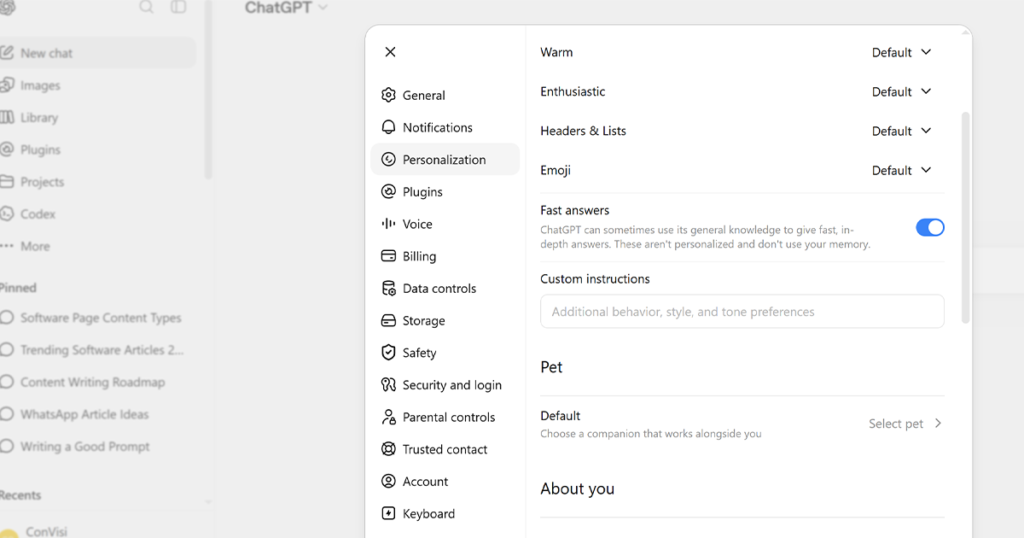
This is where you tune ChatGPT to understand your style and context so you don’t have to repeat basic details every session.
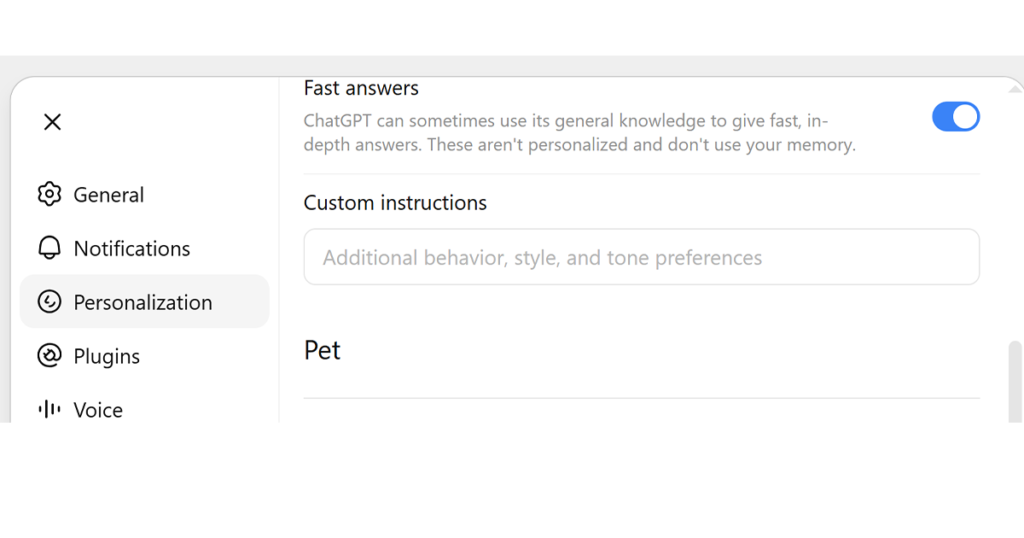
- Custom Instructions: Divided into two main prompt boxes:
- What would you like ChatGPT to know about you? (Your job role, coding languages you use, goals, location).
- How would you like ChatGPT to respond? (Preferred tone, conciseness, formatting preferences, coding conventions).
- Memory Management: Allows ChatGPT to retain useful facts across chats (e.g., “I have two cats”, “I write in Python”).
- Manage Memory: Open this menu to review, edit, or delete individual facts ChatGPT has saved about you.
- Toggle Off: Turn Memory off if you prefer completely isolated chat sessions.
3. Connected Apps (Plugins & Integrations)
Manage third-party tools connected to your OpenAI account.
- Cloud Storage Connections: Link services like Google Drive or Microsoft OneDrive so ChatGPT can read documents directly without manual uploads.
- App Directory & Permissions: Review connected tools like Canva or Zapier and revoke access permissions whenever necessary.
4. Data Controls & Privacy
Essential controls for keeping your personal data safe.
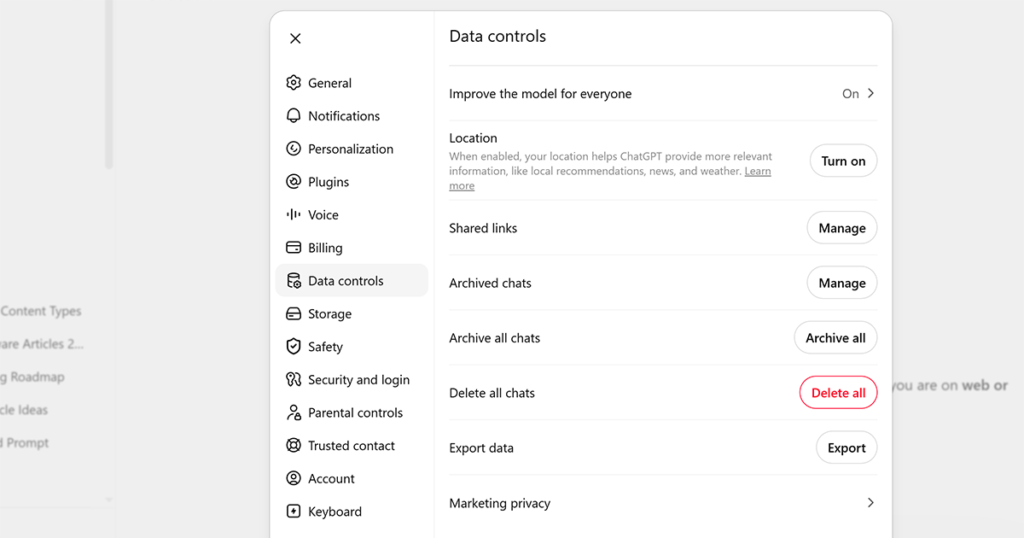
- Improve the Model for Everyone (Data Training Toggle): Turn this OFF if you do not want OpenAI to use your chat history or uploaded documents to train future foundation models.
- Shared Links: Review or delete public links you’ve previously generated from your chats.
- Export Data: Request a complete
.zipfile containing your entire conversation history and uploaded assets sent to your email. - Delete Account: Permanently removes your OpenAI account and all associated data.
5. Security & Account
- Multi-Factor Authentication (2FA): Enable two-step verification via an authenticator app (e.g., Google Authenticator, 1Password) to secure your account against unauthorized logins.
- Logged-in Sessions: View active devices and log out of remote browser sessions remotely.
Configuring tools in ChatGPT depends on whether you are using built-in tools during a chat session, adjusting account-level integrations, or setting up tools inside Custom GPTs.
Toggling Tools in a Active Chat Session
When starting a conversation, you don’t need a deep settings menu to enable core tools—you control them directly from the composer bar.
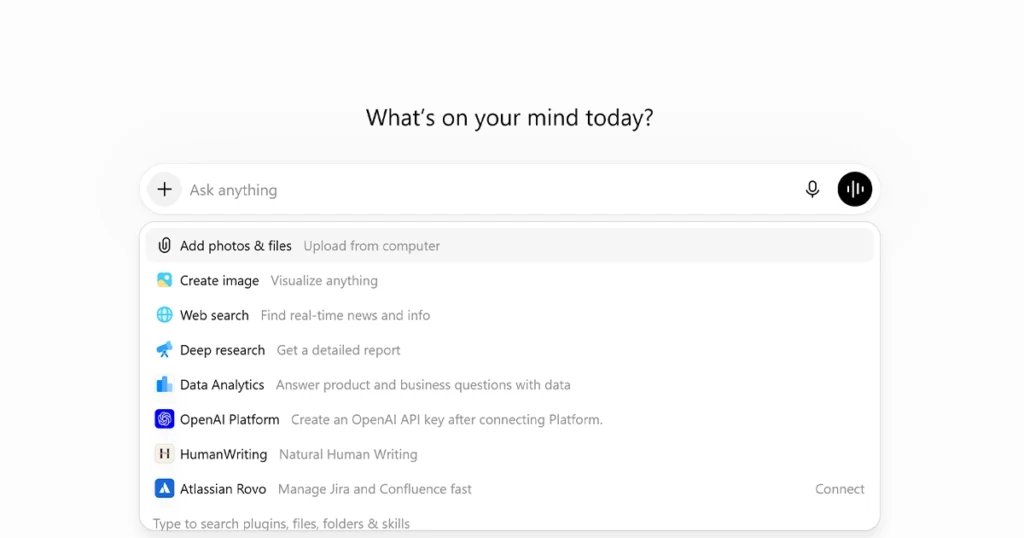
- Open a new chat in ChatGPT.
- Look at the bottom prompt box and click the
+(Plus / Attach) icon. - Select or toggle your desired tool:
- Web Search: Forces real-time internet searches for fresh sources and citations.
- Deep Research: Enables multi-step deep web scanning for structured reports.
- Canvas: Opens the interactive split-screen workspace for editing long text or code side-by-side.
- Code Interpreter / Data Analysis: Upload spreadsheets, PDFs, or code files to execute scripts and generate charts in real time.
- Alternative Trigger: You can also type commands directly into your prompt (e.g.,
"Use Canvas to draft..."or"Search the web for...").
Configuring External Tool Connections (Settings Menu)
If you want ChatGPT to access third-party data sources like Google Drive or Notion, you configure them in your global account settings.
- Click your Profile Picture / Name in the bottom-left corner of the web interface.
- Select Settings.
- Go to Connected Apps (or Integrations):
- Toggle ON services like Google Drive or Microsoft OneDrive to allow inline document fetching.
- Grant or revoke permissions for external web services and browser extensions.
- (Optional) Go to Data Controls to enable/disable whether data processed by these tools can be used to improve OpenAI’s models.
Enabling Tools Inside a Custom GPT (GPT Builder)
If you are creating or editing a Custom GPT, you can decide which specific capabilities that custom assistant is allowed to use.
1.Navigate to GPT Builder:Web Experience.
Click Explore GPTs in the left sidebar, then select Create (or edit an existing one under My GPTs).
2.Open the Configure Tab:Manual Settings.
Switch from the Create tab to the Configure tab at the top of the screen.
3.Toggle Core Capabilities:Capabilities Section.
Scroll down to Capabilities and check/uncheck the tools you want your GPT to access:
- Web Browsing: Allows the GPT to search the web for up-to-date facts.
- Code Interpreter & Data Analysis: Enables Python code execution, CSV analysis, and chart generation.
- DALL-E Image Generation: Enables inline visual generation based on text prompts.
4.Add Custom Actions / APIs:Advanced Tools (Optional).
Scroll to Actions to add custom REST APIs or webhooks if you want your GPT to pull data from an external server or database.
5.Save & Publish:Top Right Corner.
Click Update or Save in the top right corner to apply your tool configuration.
The Ultimate Master Guide to ChatGPT: Privacy, Customization, Writing, and Coding
ChatGPT is a versatile assistant for drafting content, debugging code, and analyzing dense documents. However, getting the best results requires knowing how to configure its settings and structure your prompts effectively.
This comprehensive guide covers everything from privacy configurations and custom workflows to writing, coding, and document analysis.
1. Managing Privacy, History, and Data Controls
How to Turn Off Data Training in ChatGPT
By default, consumer plans use conversations to train OpenAI models. If you want to keep your conversations private while maintaining your chat history, you can opt out in a few clicks:
- Click your profile icon in the bottom-left or top-right corner.
- Select Settings > Data Controls.
- Toggle off Improve the model for everyone.
Note: Alternatively, you can start a Temporary Chat from the top-left model picker. Temporary chats aren’t saved to history, don’t update memory, and aren’t used for training.
How to Clear or Export ChatGPT Chat History
To back up your data or clear past conversations:
- To Export Data: Go to Settings > Data Controls > click Export Data. Confirm the export, and OpenAI will email you a downloadable
.zipfile containing your chat history and account data. - To Clear All Chats: Navigate to Settings > General > click Clear all chats. To delete individual threads, hover over a conversation in the sidebar, click the three dots (…), and select Delete.
2. Personalizing Your Assistant & Interactive Editing
How to Set Up Custom Instructions in ChatGPT
Custom Instructions let you give ChatGPT standing context and preferences so you don’t have to repeat yourself in every prompt.
- Click your profile icon and select Custom Instructions.
- Box 1 (What would you like ChatGPT to know about you?): Add your role, location, hobbies, or preferred technical stack (e.g., “I’m a senior software engineer working with React and Python”).
- Box 2 (How would you like ChatGPT to respond?): Specify tone, format, and depth preferences (e.g., “Keep answers concise, avoid fluff, use Markdown tables for comparisons, and skip introductory filler”).
- Save your preferences.
How to Use Canvas in ChatGPT
Canvas opens a side-by-side workspace designed for editing long articles or refining code.
- Opening Canvas: Type
/canvasin the prompt composer or ask ChatGPT to"open canvas". ChatGPT also automatically opens Canvas when generating longer pieces of writing or code. - Inline Edits: Highlight specific sections of text or code in the Canvas pane and select Ask ChatGPT to request targeted changes.
- Writing Shortcuts: Use the bottom-right menu in Canvas to adjust reading levels, change length, or run a final polish.
- Code Execution: For Python, click the Execute button inside Canvas to run code directly and debug errors in real time.
How to Build a Custom GPT
Custom GPTs let you combine custom instructions, uploaded reference files, and specific capabilities (web browsing, code interpreter, image generation) into a shareable tool.
- In the sidebar, click Explore GPTs > + Create.
- Use the Create tab to build conversationally, or switch to the Configure tab for precise manual control.
- Fill in the core details:
- Name & Description: Define what your GPT does.
- Instructions: Write detailed rules guiding its personality and task execution.
- Knowledge: Upload relevant reference documents (PDFs, style guides, documentation).
- Capabilities: Enable Web Search, DALL-E, or Code Interpreter.
- Click Save in the top-right corner to publish it privately, via link, or to the GPT Store.
3. Working with Files and Documents
How to Upload PDFs / CSVs to ChatGPT for Analysis
You can upload spreadsheets, PDFs, or raw dataset files directly into ChatGPT for data analysis, charting, or extracting insights.
- Click the attachment icon (+ or paperclip) next to the message input box.
- Select your file (
.csv,.pdf,.xlsx,.json, etc.). - For CSVs/Spreadsheets: Ask ChatGPT to compute summary statistics, spot anomalies, or plot data (e.g., “Analyze this sales dataset and generate a chart showing month-over-month revenue growth”).
- For Documents/PDFs: Ask targeted extraction questions (e.g., “Extract all budget line items from page 12 to 15 into a structured Markdown table”).
How to Summarize a Long PDF with ChatGPT
When processing large reports, standard prompts often lead to generic summaries. Use a structured prompting technique:
- Upload the PDF using the attachment icon.
- Prompt ChatGPT with specific structural parameters:
- Summarize the attached PDF using the following structure:
- Core Objective: (1-2 sentences)
- Key Takeaways: (5 bullet points maximum, focusing on actionable findings)
- Key Metrics & Data: (Extract all relevant figures or percentages)
- Potential Limitations or Risks: (Mentioned by the authors)
4. Writing & Tone Refinement
How to Use ChatGPT to Write an Article / Blog Post
To avoid generic AI output, break article generation down into an iterative process:
- Step 1 — Outline: Ask ChatGPT to create an outline based on your topic, target audience, and primary keyword.
- Step 2 — Research & Quotes: Provide real-world statistics or points you want included.
- Step 3 — Draft Section-by-Section: Prompt ChatGPT to write section by section rather than generating the entire article at once. This maintains quality and detail.
How to Make ChatGPT Write Like a Human
AI text often contains telltale signs: repetitive transition words (“delve”, “testament”, “realm”), uniform sentence lengths, and overly polite hedging. To fix this, apply these constraints to your writing prompts:
- Vary sentence length: Request a mix of short, punchy sentences and longer compound structures.
- Remove buzzwords: Explicitly forbid terms like delve, tapestry, game-changer, seamless, dynamic, leverage, or in conclusion.
- Feed it sample text: Provide 2–3 paragraphs of your own writing and prompt: “Analyze the style, cadence, and tone of the sample below. Write the response matching this exact style.”
How to Rewrite Emails Using ChatGPT
Whether turning a hasty note into a professional update or softening a blunt response, use quick contextual rewrites.
Example Prompt:
“Rewrite this draft email to be professional yet concise. Keep it under 100 words, maintain an approachable tone, and ensure the main call-to-action stands out clearly:
Draft: Hey team, we need the quarterly numbers by Friday or the report will be late. Send them over as soon as you can.“
5. Coding, Development & Learning
How to Fix Code Errors with ChatGPT
ChatGPT acts as an efficient pair programmer( Codex ) when given the necessary error context.
- Paste the full error message along with the relevant code snippet.
- Include information about your runtime environment (e.g., “Node.js v20 with TypeScript”).
- Use a prompt format like:
- like : My Python script is throwing a `KeyError: ‘user_id’` on line 42.
Here is the code context:
[Paste Code Here]
Explain why this error is occurring and provide the corrected code snippet.
How to Write Custom CSS / HTML Using ChatGPT
You can request frontend component structures or responsive UI fixes directly.
- Building Components: Ask for semantic HTML paired with modern CSS (Flexbox/Grid).
Example: “Write a semantic HTML card component with Tailwind CSS that includes an image, title, badge, and CTA button.” - Debugging Layouts: Describe your layout issue clearly.
Example: “My flex container isn’t wrapping child elements properly on mobile screens. Here is my current CSS: [paste CSS]. How do I fix it?”
How to Explain Complex Topics with ChatGPT
ChatGPT excels at translating dense, technical concepts into understandable mental models.
Use progressive framing techniques depending on your target depth:
- The Feynman Technique Prompt: “Explain quantum computing as if I am 12 years old. Use an analogy involving everyday objects, and avoid jargon.”
- Multi-Level Prompt: “Explain the concept of APIs at three levels: 1) To a 10-year-old, 2) To a non-technical business owner, and 3) To a junior software engineer.”
By combining clear constraints with structured prompts and built-in features like Canvas and Custom Instructions, you can turn ChatGPT into a personalized workspace tailored to your exact workflow.



Omkumar kamar