
What Is the Photoshop 2026 AI Assistant?
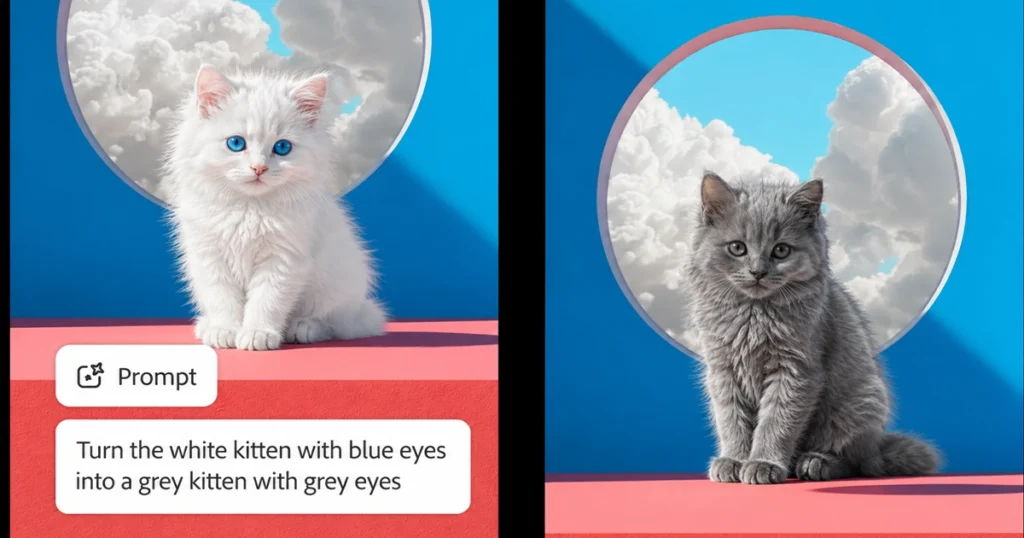
The centerpiece of the Photoshop 2026 update is a conversational AI Assistant that lets users describe edits in natural language, or by voice on mobile, instead of manually selecting tools and adjusting sliders. Adobe first showcased the concept at Adobe MAX in October 2025 and opened it to public beta on Photoshop for web and mobile on March 10, 2026.
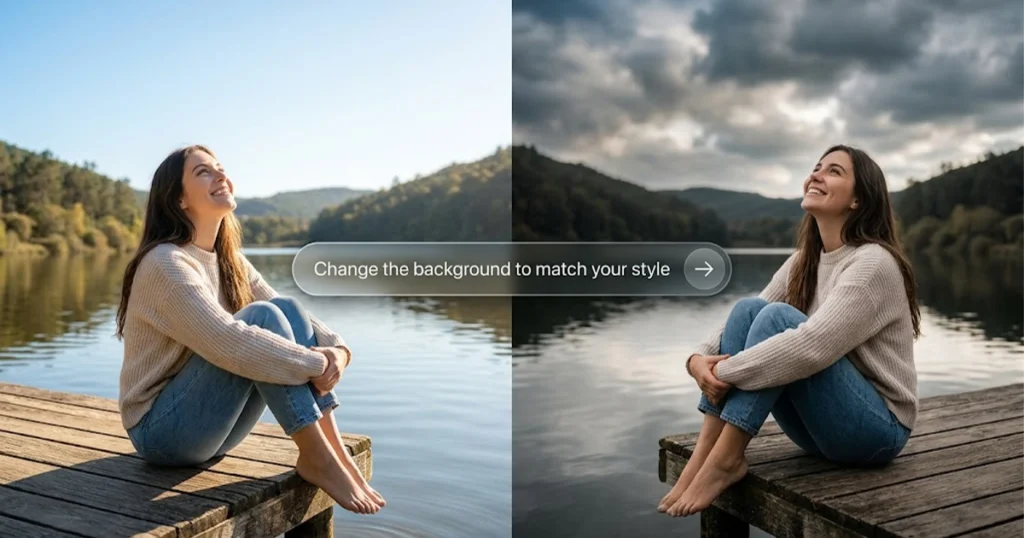
Functioning like a chat panel built into Photoshop, the assistant accepts requests such as “remove the person in the background” or “make the sky more dramatic,” identifies the appropriate tools, and applies the change without requiring the user to know which layer, mask, or slider is involved.
Platform note: As of the public beta, the AI Assistant is available on Photoshop for web and mobile (iOS and Android) only. Adobe has not confirmed a release date for the AI Assistant inside Photoshop desktop, so desktop users currently need to switch to the web app to use it.
Two Editing Modes: Automatic and Guided
Adobe built the assistant around two distinct interaction styles, designed to suit different skill levels:
- Automatic mode — You type or speak a single instruction, and Photoshop executes the edit in one step. This is aimed at quick, straightforward tasks like object removal or a color shift.
- Guided mode — Instead of completing the edit silently, the assistant walks through each step: which tool it selected, why it chose a particular selection method, and what parameters it applied. Users can watch the process unfold and intervene at any point.
Opinion: For photographers or designers who are newer to Photoshop, Guided mode has the potential to double as an informal tutorial, since it explains technique rather than just delivering a result. This is our own read on the feature’s usefulness, not an Adobe claim.
What Kinds of Edits Does It Support?
Based on Adobe’s official announcements, the AI Assistant currently supports natural-language and voice-driven requests for:
- Removing distractions or unwanted objects
- Changing or removing backgrounds
- Refining lighting and color
- Adjusting or swapping skies
- Cropping to different formats
Access requires an active Creative Cloud subscription that includes Photoshop; no separate sign-up has been required to see the assistant panel once the beta update is applied.
AI Markup: Drawing Directly on the Canvas
Alongside the AI Assistant, Adobe introduced AI Markup, a tool that lets users draw directly on an image — using a brush or rectangle tool — to mark exactly where an edit should apply. This annotation can then be paired with a text prompt, giving more spatial precision than a text description alone, which is useful for placing objects, adjusting lighting in a specific area, or sketching in new elements.
Firefly Image 4 and Generative Fill Upgrades
Photoshop’s generative tools are now powered by an updated Firefly image model. According to Adobe’s announcements, Generative Fill has been upgraded to use Firefly Image 4, with improvements that include:
- Higher-resolution generative output
- Reference-image compositing, where a user supplies a reference photo and Generative Fill preserves that object’s identity, matching its scale, rotation, lighting, color, and perspective when placing it into a new scene
Opinion: This reference-image capability looks like a meaningful step toward more reliable product-photography compositing, since earlier generative tools were less consistent at preserving an exact product’s appearance. This is an assessment, not an official performance claim, since Adobe has not published benchmark figures for this feature.
Multi-Model Support: Beyond Firefly
Photoshop is no longer limited to Adobe’s own Firefly models for generative tasks. Adobe has confirmed that Photoshop and other Creative Cloud apps now integrate select third-party AI models — including options from Google and Black Forest Labs (FLUX) — for certain generative operations, giving users a choice of model depending on the task.
Region and access note: Model availability and any usage limits can vary by subscription tier and region. Always check your in-app options, since third-party model access is not guaranteed to be identical across all Creative Cloud plans.
New Non-Destructive Adjustment Layers: Clarity, Dehaze, and Grain
Outside of generative AI, Photoshop 2026 also added new non-destructive adjustment layers for Clarity, Dehaze, and Grain — controls long familiar to Lightroom users — directly into Photoshop’s layer stack. This allows photographers to apply and fine-tune these effects without permanently altering pixel data, and to revisit or remove the adjustment later.
Firefly AI Assistant: The Bigger Picture Across Creative Cloud
It’s worth distinguishing the Photoshop AI Assistant from the broader Firefly AI Assistant, which Adobe announced separately on April 15, 2026, with public beta access opening April 27, 2026, in the Firefly web app.
Firefly AI Assistant is a conversational layer that sits across multiple Creative Cloud apps — including Photoshop, Illustrator, Premiere Pro, and Lightroom — and can orchestrate multi-step workflows spanning several apps from one chat interface. By contrast, the AI Assistant built into Photoshop itself is scoped to tasks within that one app.
Access note: Firefly AI Assistant has been available only to users on a Creative Cloud Pro plan, or a Firefly Pro, Pro Plus, or Premium plan — it is not included with every Creative Cloud subscription tier.
In June 2026, Adobe expanded this further, moving AI Assistant into public beta inside additional apps — Premiere Pro, Illustrator, InDesign, and Frame.io — with After Effects support noted as private beta at that time.
Should You Use the Photoshop 2026 AI Assistant?
This section is opinion and practical guidance, not an Adobe claim.
For creators editing a single image quickly, describing a change conversationally can lower the learning curve compared to manually locating the right tool, and Guided mode adds a layer of transparency about what’s happening. That said, the assistant currently edits one image at a time — it does not handle captioning, video, multi-format exports, or publishing, so it’s best treated as an accelerator for specific editing tasks rather than a full content-production system. Experienced designers with efficient manual workflows may find the most value in using it for early exploration or repetitive fixes, while reserving final, detail-critical work for manual tools.


Add your first comment to this post