
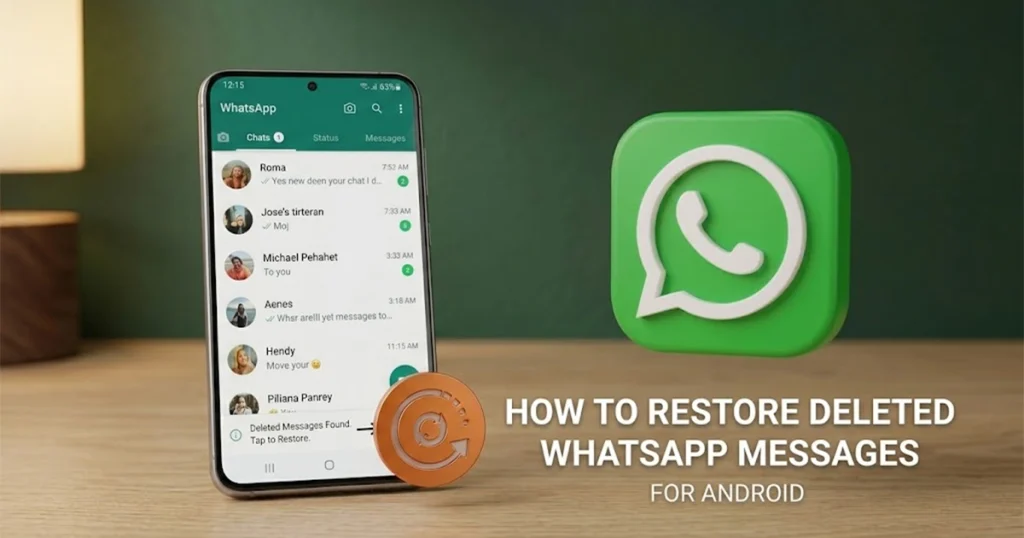
 Accidentally deleting an important WhatsApp message can be frustrating, especially when the conversation contains important information, photos, documents, or personal memories. Fortunately, you may be able to recover deleted WhatsApp messages if they were included in a previous WhatsApp backup.
WhatsApp does not keep your complete chat history on its servers, so recovery generally depends on an existing backup. On Android, WhatsApp can use a Google Account backup, while iPhone users can restore chats from an iCloud backup.
In this guide, we’ll explain how to recover deleted WhatsApp messages in six simple steps, followed by some important things you should know before attempting a restore.
How to Recover Deleted WhatsApp Messages
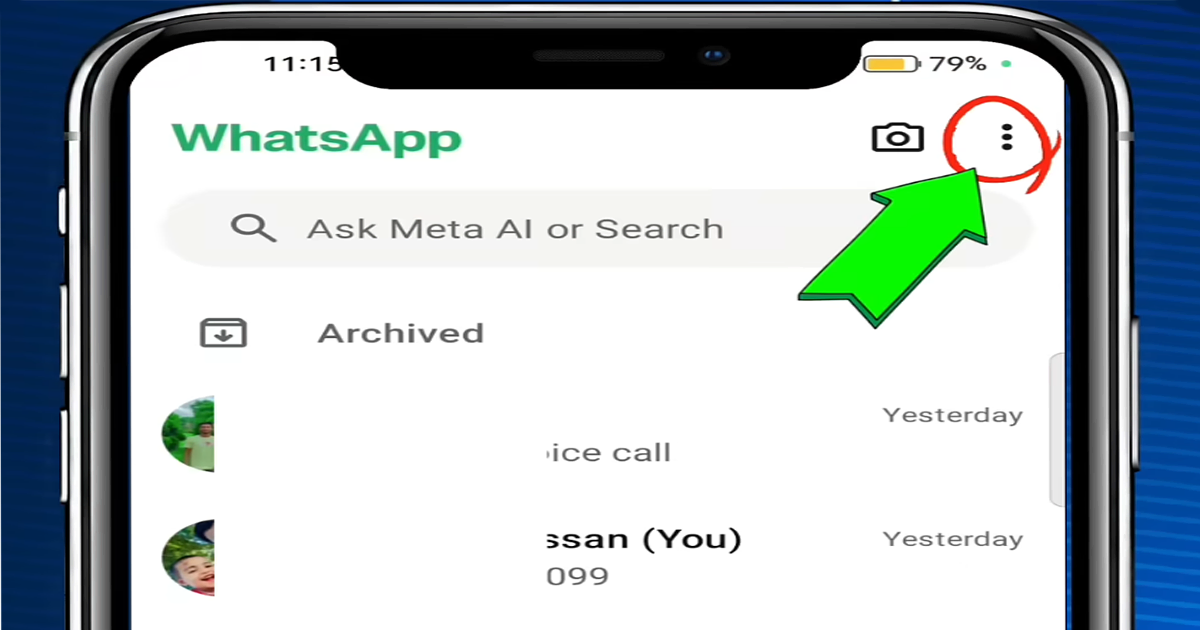
Step 1: Open WhatsApp and Tap the Three-Dot Menu
First, open WhatsApp on your Android phone.
On the main WhatsApp screen, look at the top-right corner. You will see the three-dot menu icon.
Tap the three dots to open WhatsApp’s additional options.
Step 2: Open Settings
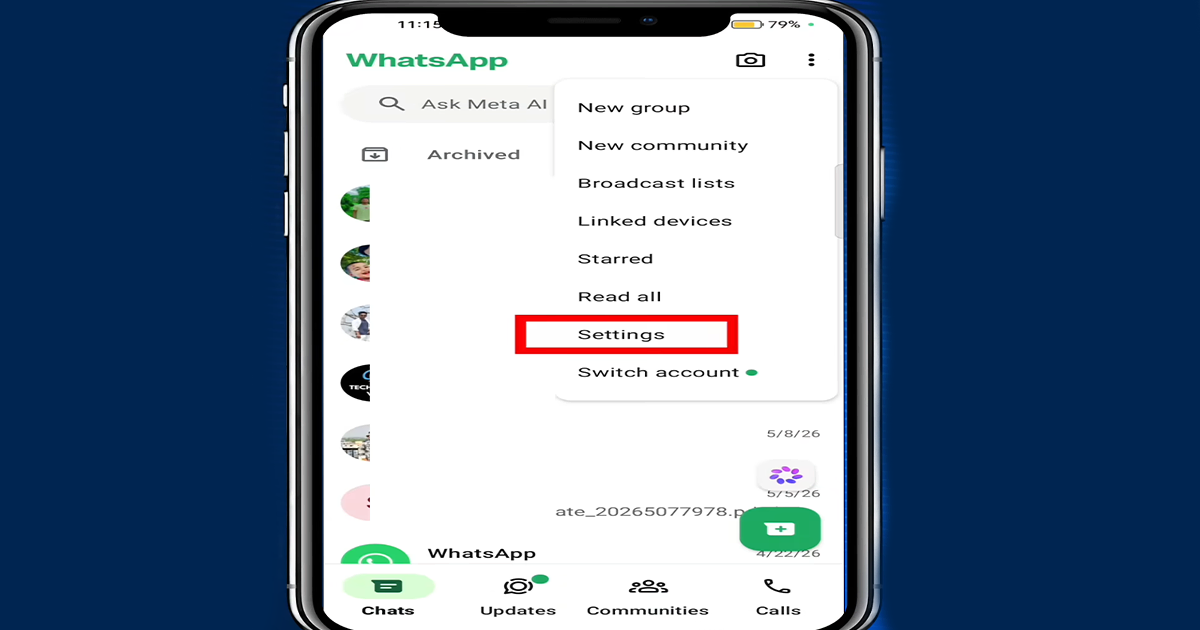
After tapping the three-dot menu, a small menu will appear.
From this menu, tap Settings. This will take you to WhatsApp’s main settings page, where you can manage your account, privacy, chats, notifications, and other features.
Step 3: Open the Chats Section
Inside WhatsApp Settings, look for the Chats option.
Tap Chats to open the settings related to your conversations.
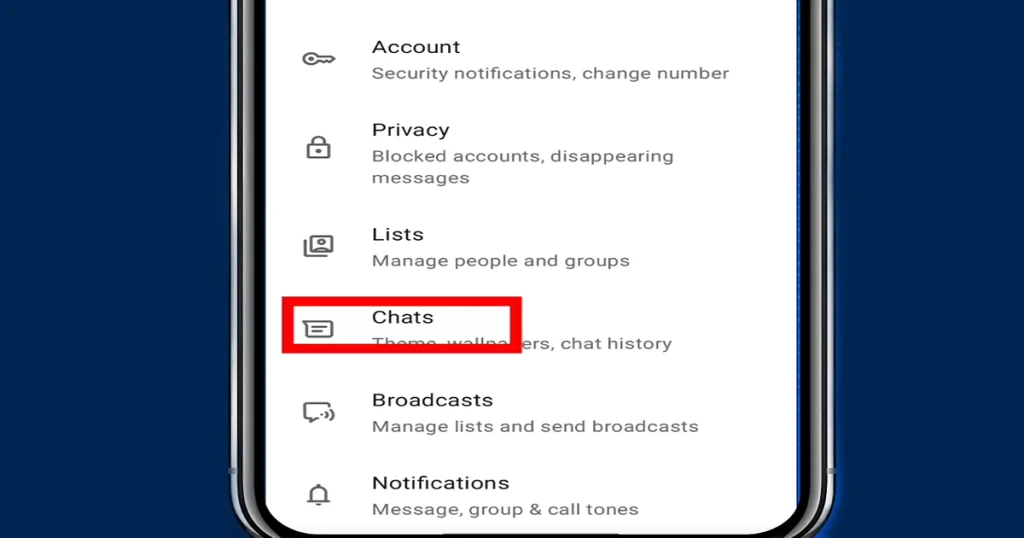
This section contains several options for managing your WhatsApp chats, including chat backup and other chat-related settings.
Step 4: Open Chat Backup and Check the Backup
Now, look for Chat backup and tap it.
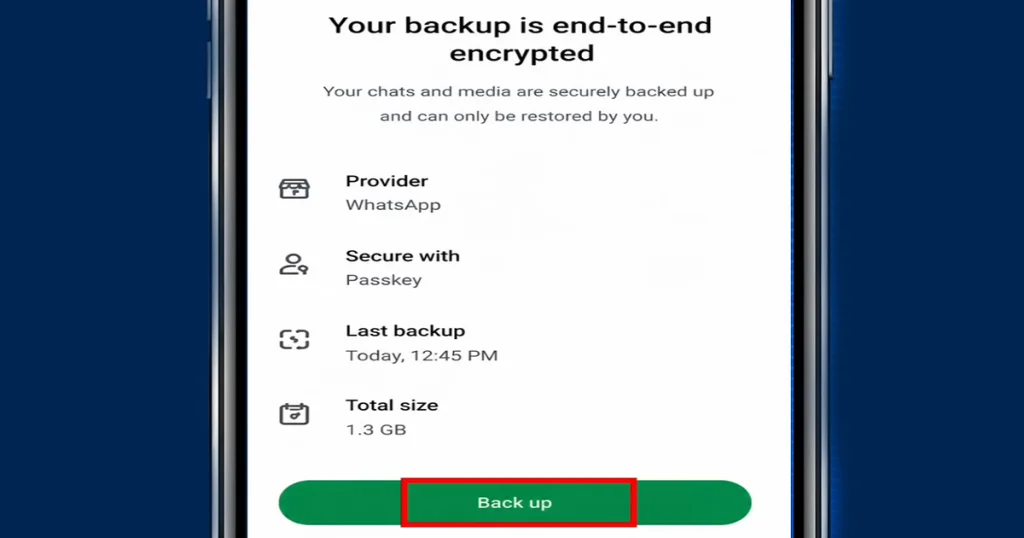
Here, you can check whether WhatsApp has created a backup of your chats. You should be able to see information about the most recent backup, including when it was created.
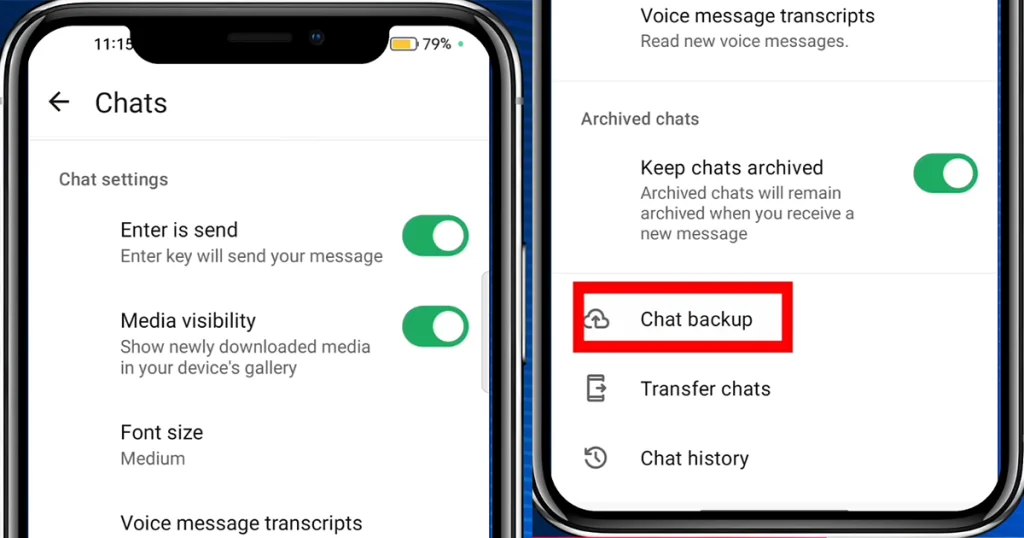
This is the most important part of the recovery process. If the deleted message existed before the most recent backup was created, there is a possibility that it is included in that backup. If the message was deleted before the backup was created, however, that backup may not contain it. WhatsApp states that messages received or sent after the latest backup cannot be restored from that backup.
Step 5: Reinstall WhatsApp
If you have confirmed that a suitable backup exists, the next step is to reinstall WhatsApp.
Uninstall WhatsApp from your phone and then install it again from the official app store.
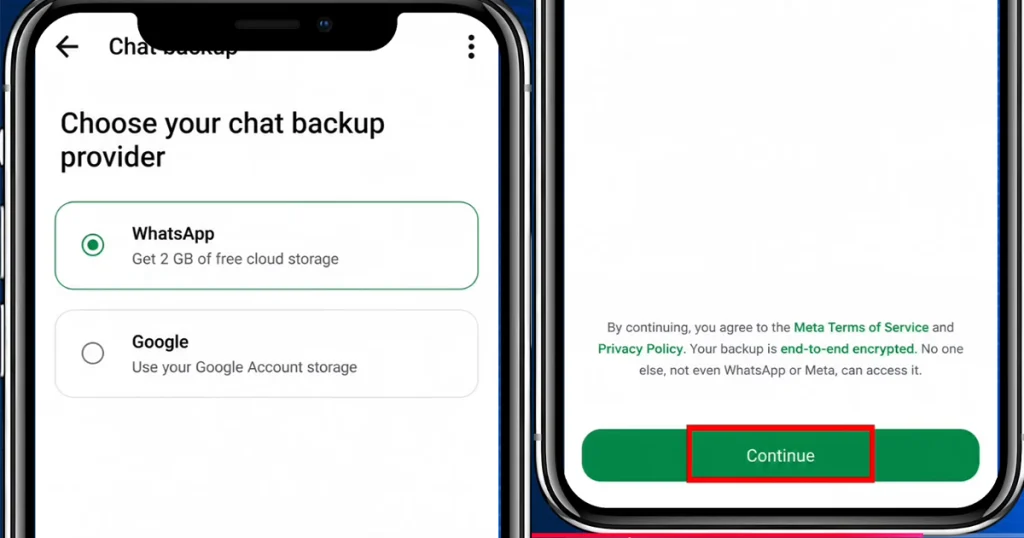
After opening WhatsApp, enter and verify the same phone number associated with the backup. WhatsApp requires the same phone number when restoring the backup.
Important: Do not skip the restoration option if you want to recover the messages from that backup.
Step 6: Tap Restore When WhatsApp Finds the Backup
During the WhatsApp setup process, the app will look for an available backup.
If WhatsApp finds your Google Account backup, you should see an option to Restore it. Tap Restore and allow WhatsApp to complete the process.
Once the restoration finishes, continue setting up WhatsApp. Your chats included in that backup should appear again.
Keep in mind that WhatsApp restores the backup that is available; it cannot recover messages that were never included in that backup. Also, creating a newer backup can replace the previous Google Account backup, so you should be careful before making another backup when trying to recover older messages.
Four Important Things to Know Before Recovering WhatsApp Messages
1. You Need an Existing Backup
The most important requirement is having a backup that contains the deleted messages.
If you never backed up your WhatsApp chats, there may be no backup from which WhatsApp can restore those messages. WhatsApp says that chat history is not stored on its servers and that it cannot restore your chats for you.
2. Newer Messages May Disappear After Restoring an Older Backup
Restoring an older backup can bring back older conversations, but it does not merge every message you’ve received since that backup was created.
For example, if your backup was created on Monday and you deleted a message on Tuesday, restoring Monday’s backup may recover the Monday version of your chat, but messages received after that backup may not be included.
This is why you should check the backup date before starting the restoration process.
3. iPhone Users Have a Different Backup Method
The process is slightly different on an iPhone.
WhatsApp uses iCloud for its in-app chat backups on iPhone. You can check your backup by opening WhatsApp and going to Settings > Chats > Chat Backup. If a backup exists, WhatsApp will show the time and size of the latest backup.
To restore an iCloud backup, WhatsApp’s official process is to uninstall and reinstall WhatsApp, verify your phone number and Apple ID, and then select Restore Chat History when prompted.
4. WhatsApp Web Cannot Restore Your Deleted Messages
If you’re using WhatsApp Web or WhatsApp on a computer, you cannot perform the backup restoration process from there.
WhatsApp states that chat backup and restoration must be performed using the phone. Linked devices such as WhatsApp Web, Mac, or Windows cannot be used to back up or restore chat history.
Can You Recover WhatsApp Messages Without a Backup?
In most cases, recovering a deleted WhatsApp message becomes difficult if there is no available backup containing it.
WhatsApp’s official guidance makes it clear that your chat history isn’t stored on WhatsApp’s servers, meaning WhatsApp itself cannot simply retrieve an old deleted conversation for you.
You may still have another option if you’re moving from an old phone to a new phone: WhatsApp provides a Chat Transfer feature that can transfer chat history directly between supported devices without relying solely on a cloud backup.
How to Avoid Losing WhatsApp Messages Again
The easiest way to protect your WhatsApp conversations is to keep automatic backups enabled.
On Android, you can go to WhatsApp > Settings > Chats > Chat backup and configure backups to your Google Account. WhatsApp allows you to choose a backup schedule and decide whether videos should be included.
On iPhone, go to WhatsApp > Settings > Chats > Chat Backup > Auto Backup and select a backup frequency. You can also choose whether videos are included in the backup.
Final Thoughts
Recovering deleted WhatsApp messages is possible when the messages are included in an available backup. The key is to check your backup before reinstalling WhatsApp and make sure you are using the same phone number and the correct Google Account or iCloud account.
If there is no backup containing the deleted messages, WhatsApp generally cannot recover them from its servers. For this reason, keeping automatic chat backups enabled is one of the best ways to protect important WhatsApp conversations in the future.



Add your first comment to this post