

Have you ever searched for someone on Instagram and later noticed that the same account keeps appearing when you tap the search bar? Instagram saves your recent searches to make it easier to find the same accounts, hashtags, and other content again.
But there are plenty of reasons why you might want to remove those searches. Maybe you searched for something you no longer need, used someone else’s computer to access Instagram, or simply want to keep your search history private and organized.
Whatever the reason, you can delete your Instagram search history in just a few steps. The process is slightly different on desktop and mobile, so here’s how to do it on both.
Why Would You Want to Delete Instagram Search History?
Deleting your search history isn’t something you necessarily need to do every day. However, it can be useful in several situations.
For example, imagine you searched for a particular person on Instagram because you wanted to check their profile. A few days later, someone else uses your computer and clicks the Instagram search bar. That person’s account could still appear in your recent searches.
Removing your search history can help prevent situations like this.
It can also be useful if:
- You share a computer or phone with someone else.
- You want to remove old or unwanted searches.
- You searched for something by mistake.
- You want a cleaner search screen.
- You don’t want certain accounts appearing in your recent searches.
Important: Clearing your search history removes your recent searches. It does not delete your Instagram account, posts, messages, followers, or other account information.
How to Delete Instagram Search History on Desktop
If you’re using Instagram from a computer, you can manage your search history through Accounts Center.
Step 1: Open Instagram
Open Instagram in your web browser and sign in to your account.
Step 2: Click Menu
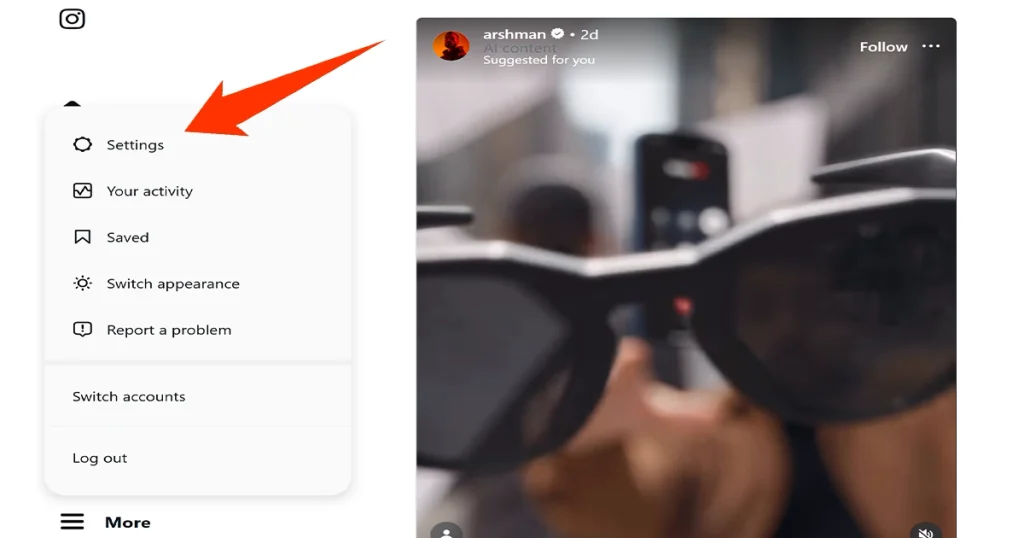
Look at the left side of the Instagram website and click Menu. You’ll see the three-line menu icon near the bottom.

Step 3: Open Settings
From the menu, click Settings.
Step 4: Go to Accounts Center
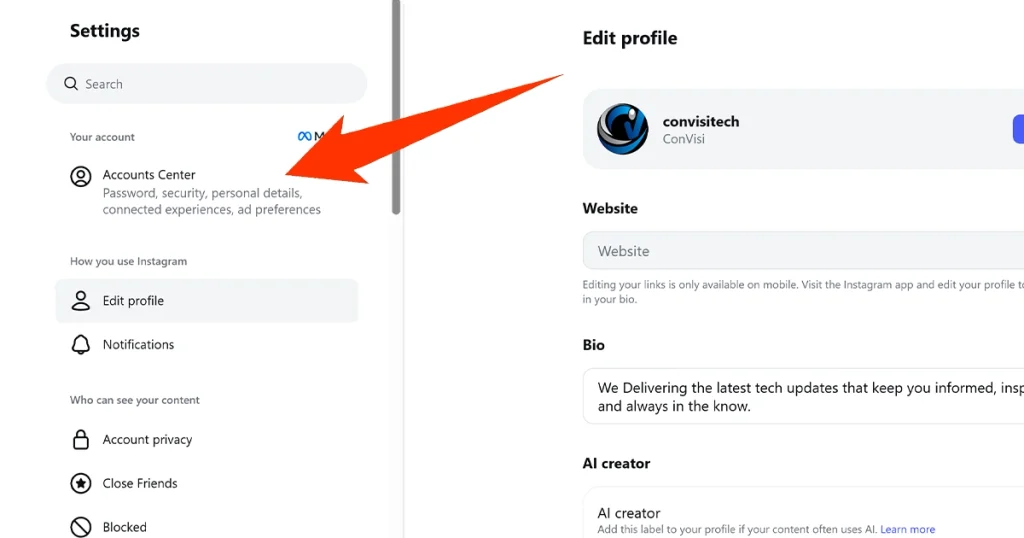
Inside Settings, look for Accounts Center and open it.
Step 5: Select Your Information and Permissions
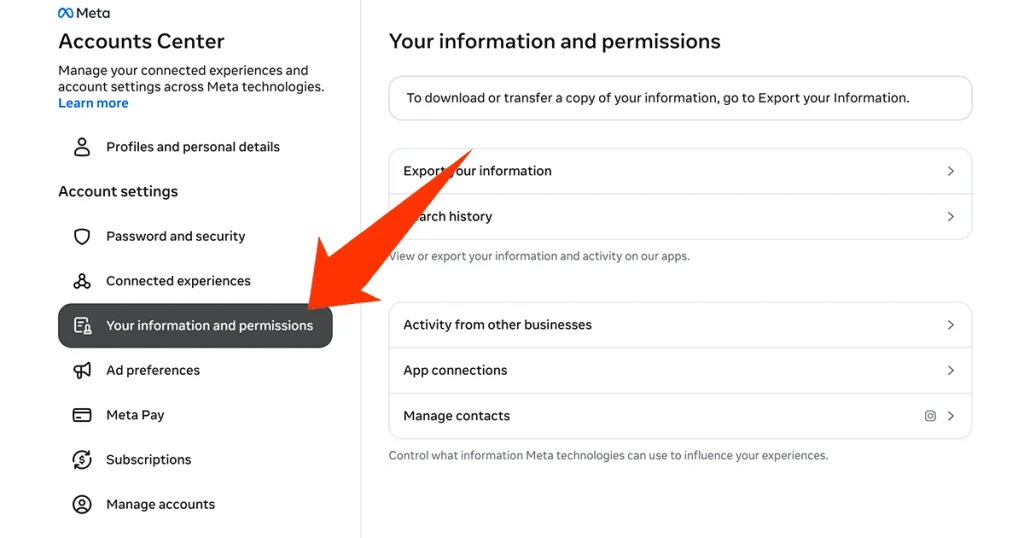
In Accounts Center, click Your information and permissions.
Step 6: Open Search History
Now find and select Search history.
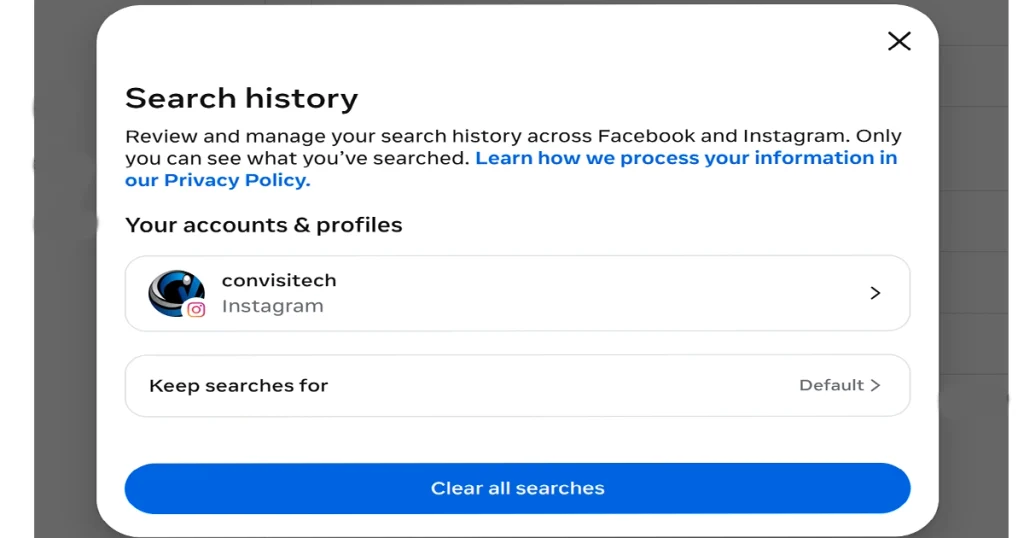
If you have more than one Meta account connected, Instagram may ask you to select the account whose search history you want to manage.
Step 7: Remove Your Searches
You should now see your recent searches.
To remove a particular search, select the X or Remove option next to it. If Instagram shows a Clear all option, you can use it to remove all of your recent searches at once.
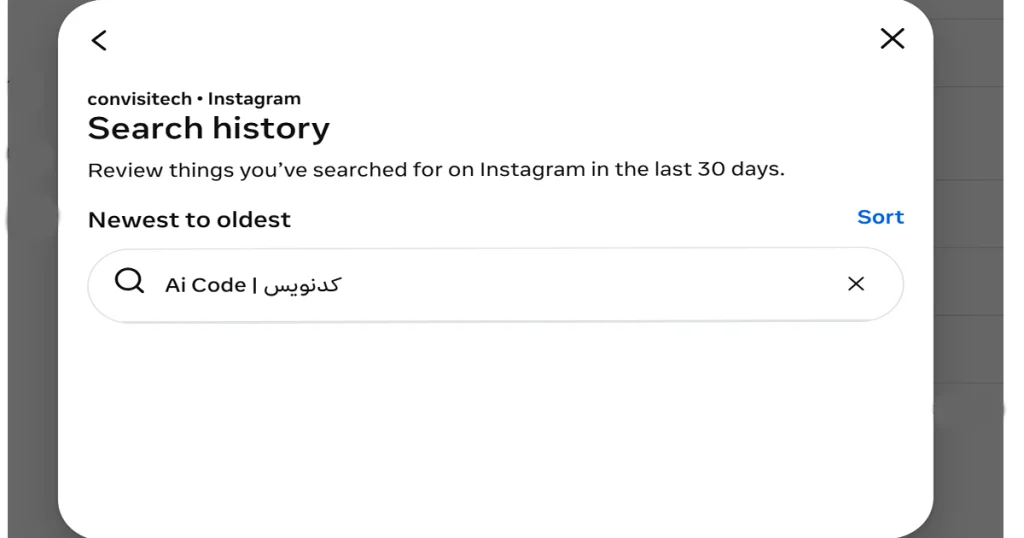
That’s it. Your selected searches should no longer appear in your recent search history.
How to Delete Instagram Search History on Mobile
The process is similar on Android and iPhone, although the exact names or positions of some options can vary depending on your Instagram app version.
Step 1: Open Instagram
Launch the Instagram app and log in to your account.
Step 2: Open Your Profile
Tap your profile picture in the bottom-right corner.
Step 3: Open the Menu
Tap the three-line menu icon (☰) in the top-right corner.
Step 4: Open Accounts Center
From the available settings, tap Accounts Center.
Step 5: Go to Your Information and Permissions
Tap Your information and permissions.
Step 6: Select Search History
Look for Search history and tap it.
Step 7: Choose Your Instagram Account
If you have multiple Meta accounts connected, select the Instagram account you want to manage.
Step 8: Clear Your Searches
You can remove individual searches by tapping the X or Remove option next to them.
If the Clear all option is available, you can use it to remove your entire recent search history.
What Happens After You Delete Instagram Search History?
Once you remove a search, it should no longer appear in your recent searches.
For example, suppose you searched for “John Smith” several times. After clearing that search, Instagram should no longer show “John Smith” in your recent search history.
However, deleting your search history doesn’t mean Instagram completely forgets every interaction you’ve ever had with that account. Your searches are only one part of how Instagram personalizes the experience.
You may still see an account or similar content in recommendations because Instagram uses other signals to personalize what appears on the platform.
Can You Delete Only One Search?
Yes. You don’t always have to delete everything.
If you searched for several accounts but only want to remove one of them, you can delete that individual search instead of clearing your entire history.
This is particularly useful when you want to keep some searches available while removing one specific search.
What Are the Benefits of Clearing Instagram Search History?
The biggest benefit is privacy. If someone has access to your device or Instagram account, your recent searches won’t be sitting there for them to see after you’ve removed them.
It can also make your search experience feel cleaner, especially if your history contains old accounts, hashtags, or searches that you no longer care about.
For people who regularly use shared computers, public devices, or family devices, clearing recent searches can be a simple privacy habit.
What If You Can’t Find “Search History”?
Don’t worry if your Instagram doesn’t look exactly like the steps above. Instagram frequently changes its interface, and some settings can appear differently depending on the app version, device, account, or region.
If you don’t see Search history inside Accounts Center, try opening Instagram’s Search section and tapping the search bar. Depending on your version of Instagram, you may be able to remove individual recent searches or clear them from there.
Updating Instagram to the latest available version can also help if you’re using an older app interface.
Final Thoughts
Deleting Instagram search history is useful when you want to clean up old searches or keep your recent activity more private. Whether you’re using Instagram on a desktop or mobile device, you can manage your searches through the available Search history settings.
Just remember that clearing your search history doesn’t delete your account activity, messages, posts, or other Instagram data. It simply removes the searches that Instagram has saved as recent searches.
.





Add your first comment to this post