
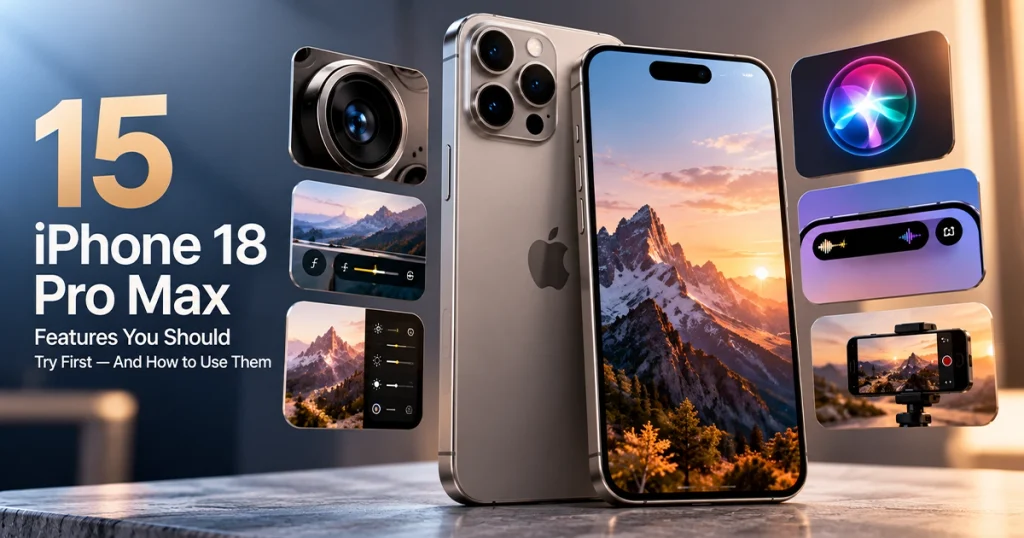
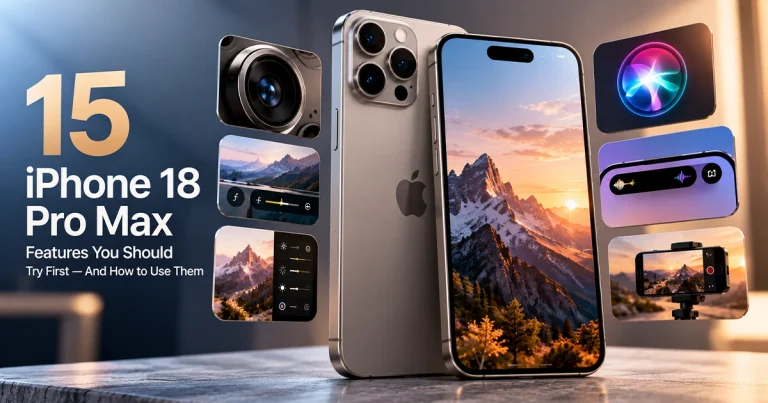
The iPhone 18 Pro Max is finally here, and this year Apple has added far more than the usual camera and performance upgrades.
Some of the most interesting iPhone 18 Pro Max features are actually the ones you may not notice immediately. There is a new variable-aperture camera, much deeper manual camera control, smarter photo editing, an upgraded Dynamic Island, new ways to customize your photos, and the biggest Siri overhaul Apple has introduced in years.
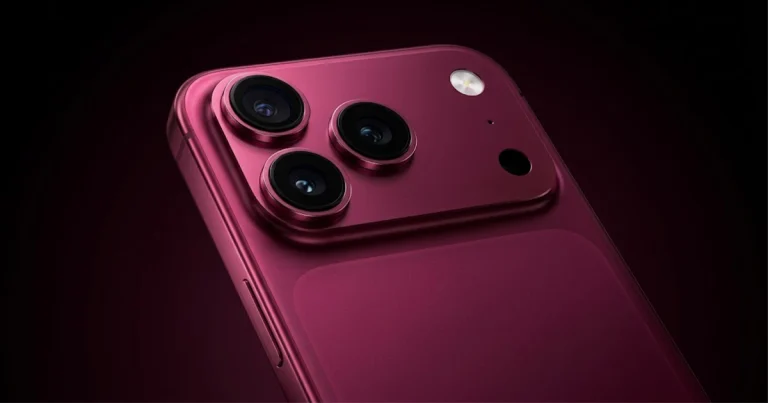
The iPhone 18 Pro Max officially became available on September 18, 2026. It comes with Apple’s A20 Pro chip, a new 48MP Fusion Main camera, iOS 27, Siri AI, and four finishes: black, silver, glacier, and the new burgundy color.
But specifications only tell part of the story.
What matters more is what these features can actually do for you.
Here are some of the best new iPhone 18 Pro Max features, along with how to use them and a few tricks that can make your photos, videos, and everyday iPhone experience much better.
1. Use Variable Aperture to Completely Change the Look of Your Photos
One of the biggest camera changes on the iPhone 18 Pro Max is something that photographers have wanted on an iPhone for a long time: variable aperture.
The 48MP Fusion Main camera now has four aperture settings:
- ƒ/1.48
- ƒ/1.8
- ƒ/2.8
- ƒ/4.0
Apple says the camera can automatically move between apertures depending on lighting and depth of field, but you can also control it manually.
Why does aperture matter?
Aperture controls how much light enters the camera and how much of the scene appears in focus.
A wider aperture such as ƒ/1.48 lets in more light. It can be especially useful in darker environments and when you want more separation between your subject and the background.

A narrower aperture such as ƒ/4 keeps more of the scene in focus, making it useful for group shots, landscapes, food tables, architecture, and other scenes where you do not want the background becoming too soft.
How to change aperture on iPhone 18 Pro Max
- Open the Camera app.
- Tap the Camera Controls button.
- Select Lens Aperture.
- Choose the aperture value you want.
- Take your photo.
You can also add Lens Aperture directly above the camera frame so you can reach it more quickly. If you want the iPhone to remember your aperture setting, enable Lens Aperture under Preserve Settings.
Quick tip
Try ƒ/1.48 for portraits and low-light shots, then switch toward ƒ/4 when photographing several people at different distances.
That small change can make a surprisingly big difference.
Image recommendation: Use Apple’s official variable-aperture camera sample here.
Optional ConVisi illustration: Show the same scene twice: one labeled ƒ/1.48 — softer background and another labeled ƒ/4 — more of the scene in focus.
2. Turn the Camera App Into a Mini Manual Camera
Variable aperture is only part of the story.
The iPhone 18 Pro Max also introduces a new Pro controls experience inside Camera.
You can manually control:
Lens aperture, shutter speed, white balance, and histogram display.
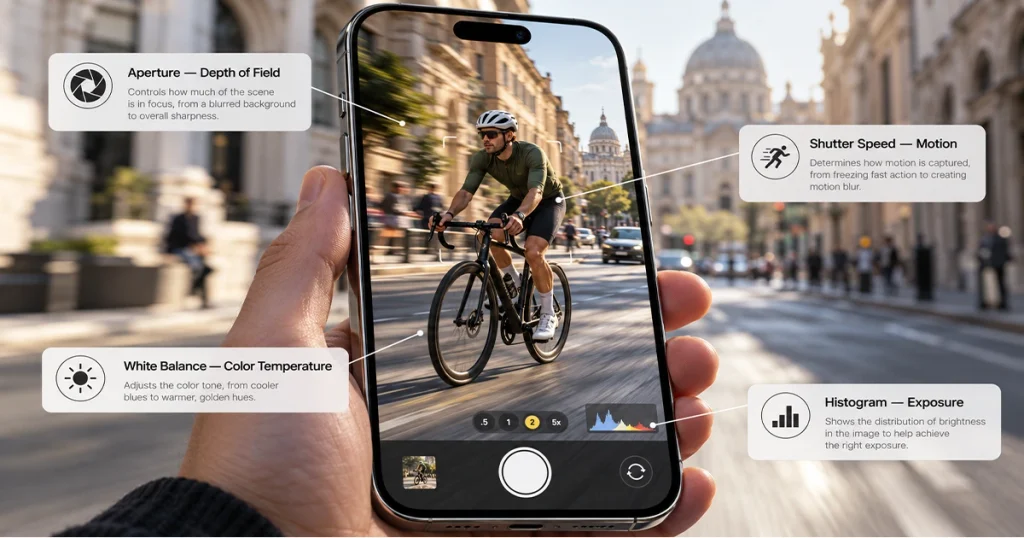
For many people, these controls used to mean downloading a dedicated professional camera app. Now Apple is putting them directly inside the default Camera app.
How to use Pro controls
Open Camera, tap the Camera Controls button, and select the setting you want to change.
For example:
Aperture: Controls depth of field and incoming light.
Shutter speed: Controls how long the camera captures light. Slower shutter speeds can create deliberate motion blur.
White balance: Changes how warm or cool colors appear.
Histogram: Helps you see whether parts of your photo are too dark or too bright.
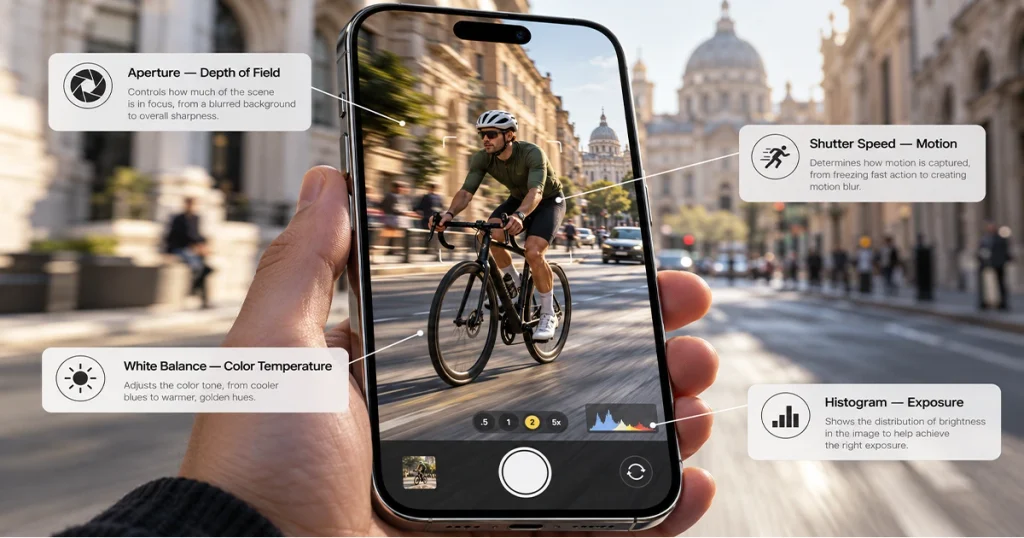
Apple also lets you pin frequently used controls above the camera frame so you do not need to dig through the menu each time.
A useful experiment
Find a moving car, bicycle, or person and experiment with different shutter speeds.
A fast shutter can freeze movement.
A slower shutter can intentionally blur the motion, giving the image a much more dramatic look.
That is the kind of feature that can make your iPhone photography feel less automatic and much more creative.
Image recommendation: Official Apple screenshot of the Pro controls interface.
Second image: A ConVisi graphic labeling Aperture, Shutter Speed, White Balance, and Histogram.
3. Give Your Photos More Personality With New Photographic Styles
Photographic Styles are not completely new, but Apple has made them much more interesting on the iPhone 18 Pro models.
The upgraded version now includes texture and grain controls, giving you more control over the overall appearance of your photographs.
This is one of those features that can make your iPhone photos feel more personal without forcing you to edit every image in another app.

You can create something cleaner and smoother, or deliberately add a more textured, film-inspired look.
Why this feature is useful
Imagine taking a portrait.
You might want one version to look extremely clean and modern.
Another could have a slightly softer texture.
A third could have visible grain for a more classic photographic appearance.
Instead of applying a generic filter after taking the shot, Photographic Styles work as part of Apple’s imaging system.
Best way to use it
Do not push every adjustment to the maximum.
Subtle changes usually produce a much better result.
Start with a style you like, then make small adjustments to texture, grain, tone, and color until the image still looks natural but has your preferred personality.
Apple says the new texture and grain controls apply to photos captured on iPhone 18 Pro models.
Image recommendation: Official Apple Photographic Styles portrait.
ConVisi image idea: Create three side-by-side versions labeled Clean, Natural, and Film-like.
4. Change the Perspective of a Photo After You Take It
Have you ever taken a photo and then noticed that your position was slightly wrong?
Maybe the subject feels too far to one side.
Maybe the photograph would have looked better if you had been standing a little farther left.
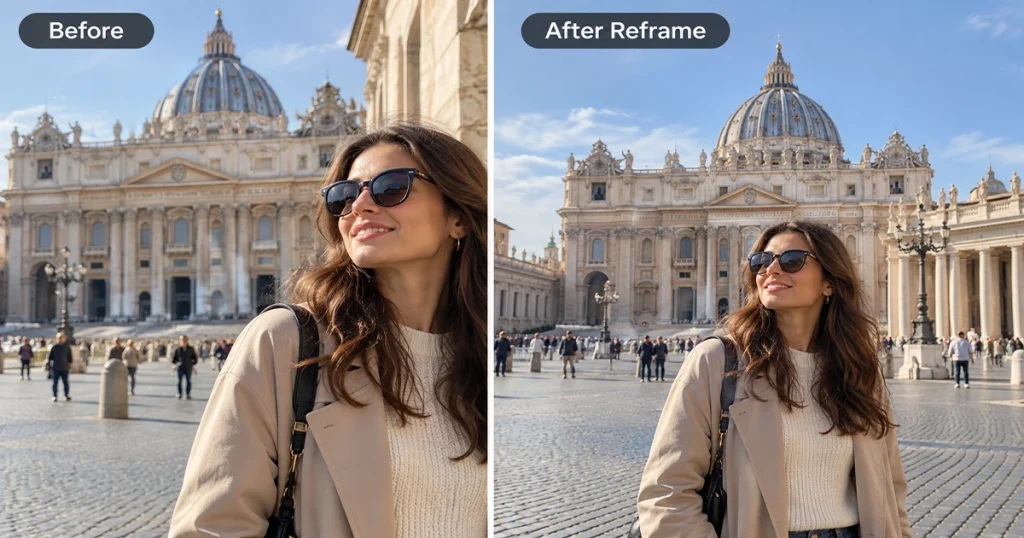
With iOS 27, Apple introduces Reframe, powered by Apple Intelligence.
It can change the perceived camera position after the photo has already been taken.
How to use Reframe
- Open Photos.
- Choose a photo.
- Tap Edit.
- Select Tools.
- Tap Reframe.
- Drag the photo to change the perspective.
- You can also pinch, zoom, pan, or rotate with two fingers.
- Tap Reframe again to process the result.
- Tap Done.
You can tap the image while editing to compare your new version with the original.
When is it useful?
It can help with:
Architecture.
Travel photos.
Portraits taken from an awkward position.
Photos where the subject feels badly placed in the frame.
This is more powerful than simply cropping an image because it changes how the scene is composed.
Image recommendation: Before-and-after example showing the original perspective and the reframed result.
5. Use Extend to Add More Space Around a Photo
Sometimes a photo is almost perfect, but the framing is too tight.
Perhaps your subject’s head is too close to the top edge.

Maybe you want a square image for social media but your original shot does not have enough room around the subject.
That’s where Extend comes in.
The tool intelligently expands an image beyond its original boundaries and generates realistic content around the edges. Apple specifically mentions using it to straighten horizons, change aspect ratios, or add space around a subject.
How to use Extend
- Open the Photos app.
- Open your picture.
- Tap Edit.
- Choose Tools.
- Select Extend.
- Pinch or drag the image to create additional space.
- Adjust the frame.
- Tap Extend.
- Tap Done.
One surprisingly useful trick
Try it after straightening a tilted landscape.
Normally, rotating an image forces you to crop away some of the edges.
Extend can generate additional surrounding image area instead, letting you keep more of the original composition.
Image recommendation: Show a narrow portrait before Extend and a wider version afterward.
Label AI-generated demonstration images clearly as illustrations rather than actual Apple camera samples.
6. Remove People and Objects More Cleanly With the New Clean Up Tool
You take a great holiday photo.
The lighting is perfect.
Your subject looks great.
Then you notice someone walking through the background.
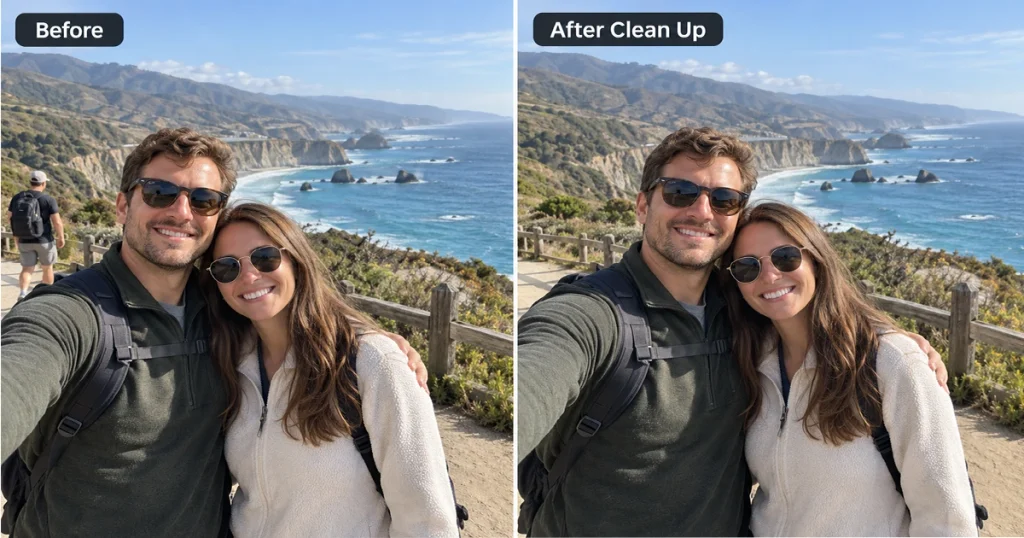
Clean Up is designed for exactly this kind of problem.
Apple has upgraded the tool in iOS 27 so it can handle larger objects and produce more realistic results. It also provides different processing options depending on the complexity of the edit.
How to remove something from a photo
- Open Photos.
- Select the image.
- Tap Edit.
- Tap Tools.
- Choose Clean Up.
- Tap, brush over, or circle the object you want removed.
- Photos may automatically highlight some distractions.
- Tap Done when you’re satisfied.
You can choose between processing options including Fast and High Quality depending on the edit.
Good uses for Clean Up
Remove a stranger from the background.
Clean up a distracting object on a table.
Remove a sign or small item behind your subject.
Remove blemishes or unwanted clutter from a product photo.
One useful detail is that you can still reset the edit later if you change your mind.
Image recommendation: Use a simple before-and-after image showing one distracting object disappearing.
7. See More at Once With the Redesigned Dynamic Island
Dynamic Island has become smaller on the iPhone 18 Pro lineup, but the more interesting improvement is what it can display.
The upgraded version can show up to three Live Activities at the same time.
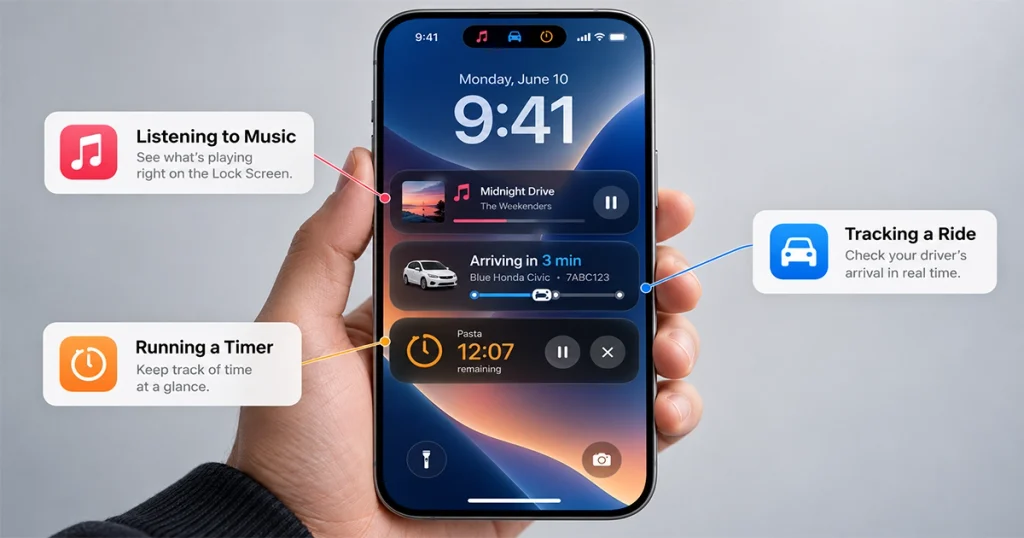
That means the area at the top of your iPhone can become much more useful when several things are happening at once.
Imagine you’re:
Playing music.
Waiting for a ride.
Running a timer.
Instead of one activity taking over the entire experience, the new Dynamic Island can accommodate more information simultaneously.
Live Activity support still depends on the app you’re using, so not every app will automatically take advantage of it.
Why it matters
This is the kind of improvement that does not sound dramatic on a specifications page, but it can make the phone feel more convenient every day.
Image recommendation: Apple’s official iPhone 18 Pro Dynamic Island image showing multiple Live Activities.
8. Ask Siri About Whatever Is Already on Your Screen
Siri AI is one of the largest software changes associated with the iPhone 18 Pro Max.
Instead of simply answering basic voice commands, Siri can now understand the content currently visible on your screen.
Apple calls this onscreen awareness.

Imagine you are viewing a web page containing concert dates.
You can ask Siri a follow-up question about what you are looking at rather than explaining everything from the beginning.
Apple gives an example in which someone viewing a sports team’s website can ask Siri to find upcoming home games and add them to Calendar.
Ways to open Siri AI
You can:
Say Hey Siri.
Press the side button.
Or swipe down from the Dynamic Island to begin a conversation.
Why this feels different
Old Siri was usually command-driven:
“Set a timer.”
“Call John.”
“Play music.”
Siri AI is designed more like an assistant you can continue talking to.
You can ask a question, follow it with another question, and keep the conversation going without repeating all the context.
Image recommendation: Apple’s official Siri AI screenshot showing an onscreen-awareness question.
9. Let Siri Find Information Hidden Inside Your Messages, Photos, and Email
Another major Siri AI feature is personal context.
Siri can use information from your messages, emails, photos, and other personal data to help find what you are looking for.
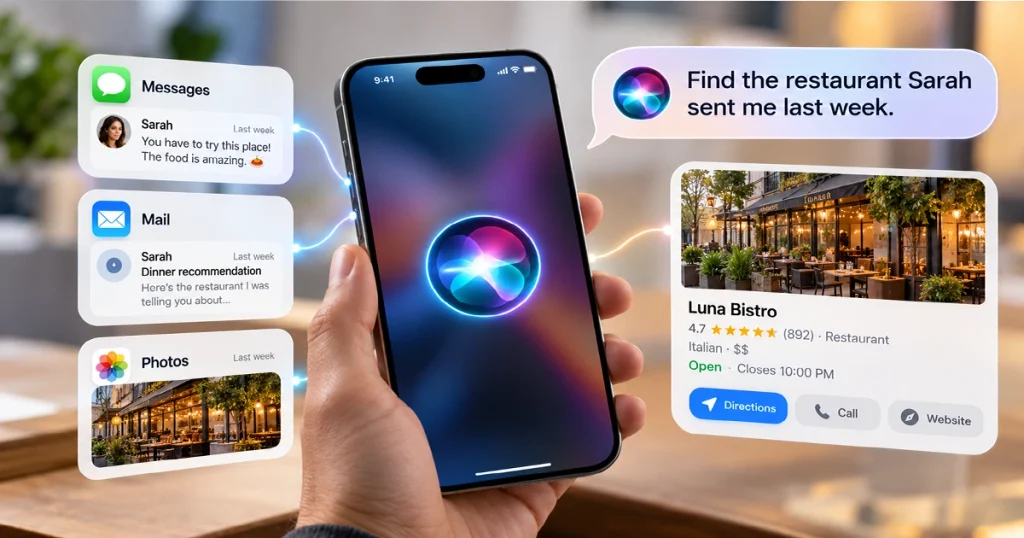
Imagine remembering that a relative sent you a recipe weeks ago, but you cannot remember whether it was in Messages or Mail.
Apple’s example shows Siri finding information mentioned in messages, locating related instructions from an email, and then adding ingredients to a grocery list.
This is one of those iPhone 18 Pro Max features that could save a surprising amount of time if you have years of information scattered across your phone.
Things you might ask
“Find the restaurant someone sent me last week.”
“Show me the photos from my weekend trip.”
“Find the email with my booking information.”
The exact result depends on what information is available and what Siri can access.
Apple says its AI architecture uses on-device processing and Private Cloud Compute for more complex requests.
Image recommendation: Official Siri AI personal-context example from Apple.
10. Point Your Camera at Something and Ask Siri About It
Siri AI is also built directly into the Camera app.
In Siri mode, you can point the iPhone at something in front of you and ask for information or actions related to it.
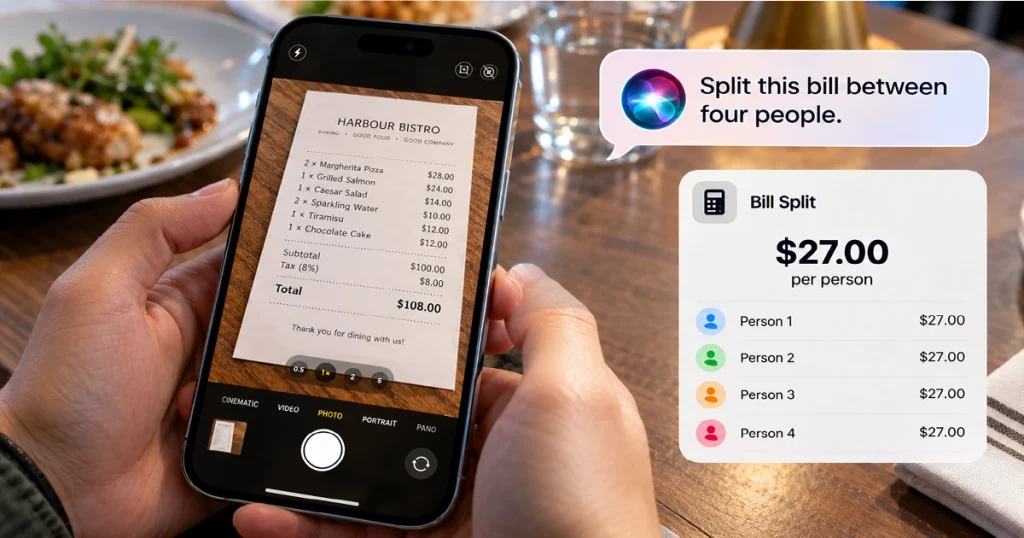
This brings visual intelligence and Siri much closer together.
For example, Apple describes pointing the camera at something such as a bill and using Siri to help split it, or using visible information to create a pass for Wallet.
Why this is interesting
You are no longer limited to typing or describing what you’re looking at.
The camera becomes part of your conversation with Siri.
Point.
Ask.
Get information or an action.
For people who frequently travel, shop, study, or explore unfamiliar things, this could become one of the more useful iPhone 18 Pro Max features.
Image recommendation: Apple’s official Siri mode in Camera screenshot.
11. Write With Siri Almost Anywhere
Siri AI is not limited to voice commands.
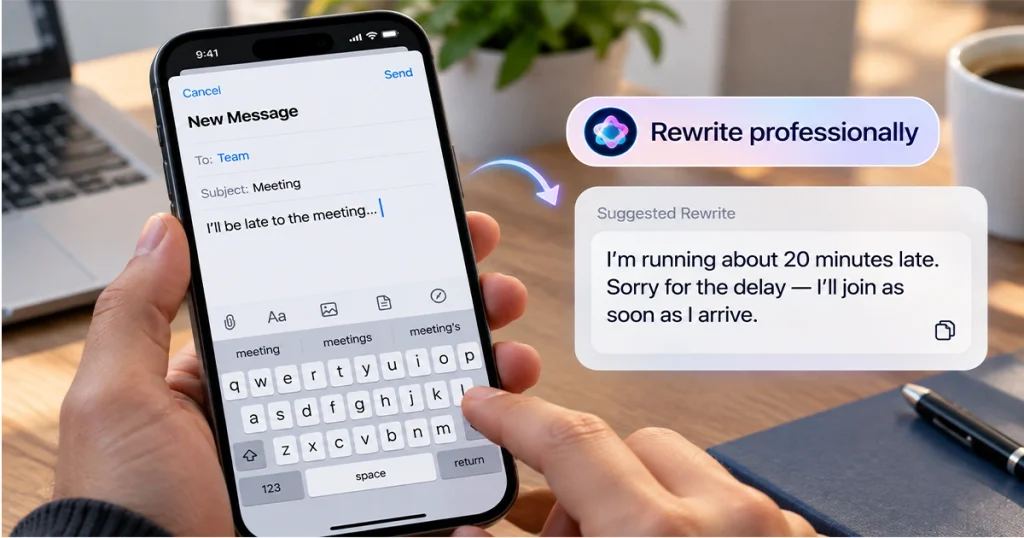
Apple has also expanded Siri into writing.
You can describe what you want written and Siri can generate a draft, edit something you’ve already written, or give feedback.
For example:
Draft an email.
Rewrite a message more professionally.
Proofread something.
Shorten a paragraph.
Create a trip itinerary.
Apple says that in Messages and Mail, Siri can even take into account the way you normally communicate with different people.
A practical example
You write:
“Tell my manager I’ll be 20 minutes late but make it polite.”
Siri can turn the idea into a properly structured message.
You can then change the result before sending it.
For many users, this may become one of the most frequently used parts of Apple Intelligence.
12. Prove What the Camera Originally Saw With Apple Reference Image
The iPhone 18 Pro Max introduces a completely different kind of camera feature called Apple Reference Image.
It is not designed to make a photograph prettier.
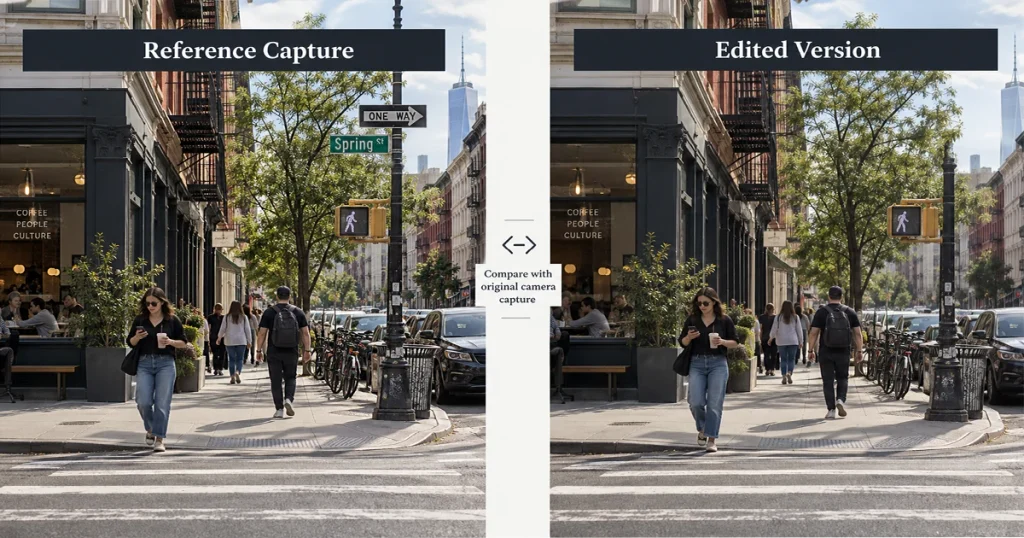
It is designed to help prove that a photograph is authentic.
When you take a picture using Reference mode, the Main camera captures signed sensor data. Apple says Private Cloud Compute can turn that information into an unalterable reference image representing what the sensor originally saw.
Think of it a little like a secure digital negative.
If the main image is later edited, the reference image can be viewed alongside it for comparison.
How to capture a Reference Image
- Open Camera.
- Swipe to Reference mode.
- Press the shutter button or Camera Control.
- The iPhone captures your normal photo plus the signed sensor data.
Who could use this?
Photojournalists.
Professional photographers.
People documenting important events.
Creators who want to demonstrate the authenticity of an image.
Even everyday users who simply want a record of what the camera originally captured.
There is one trade-off: Reference Images require additional storage. Apple says the amount varies substantially based on the photo resolution.
The feature is also opt-in and availability varies by region. Apple says capture is not initially available in the EU, and the feature is unavailable at launch in China because of regulatory requirements.
Image recommendation: Use Apple’s official Reference Image comparison graphic.
13. Add Cinematic Effects After You’ve Already Recorded the Video
The iPhone has supported Cinematic video for years, but the iPhone 18 Pro lineup gives creators more flexibility after shooting.
Apple says Cinematic effects can now be applied after capture to supported videos recorded at up to 60 fps.
You can concentrate more on capturing the moment and make some creative decisions afterward.
For casual creators, vloggers, and social-media users, that can make Cinematic mode much easier to work with.
Image recommendation: Official Apple video-editing screenshot demonstrating Cinematic effects.
14. Record 4K Dolby Vision HDR Time-Lapse Video
Time-lapse is another camera mode that received a substantial upgrade.
The iPhone 18 Pro and iPhone 18 Pro Max can now capture Time-lapse video in 4K Dolby Vision HDR.
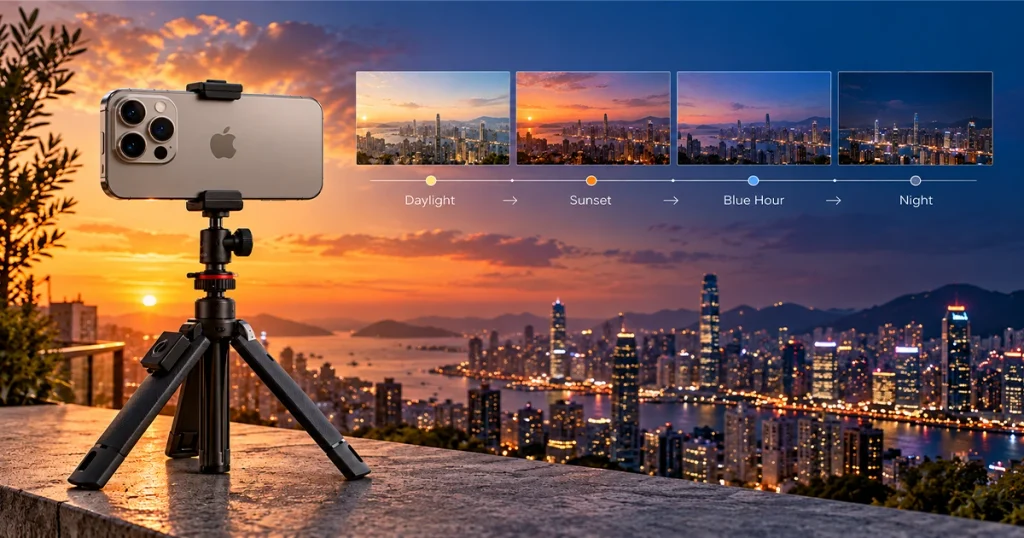
That opens the door to much higher-quality time-lapse footage.
Try it with:
A sunset.
Clouds moving across the sky.
A busy street.
A desk setup being built.
A long drawing or creative project.
Traffic at night.
Watching light move across a room.
A simple phone tripod can make a huge difference here because keeping the camera stable is important.
Image recommendation: Use an official iPhone camera image or a ConVisi-created guide showing the Time-lapse mode.
15. Make iOS 27 Feel More Like Your Own Phone
Not every great upgrade is hidden inside the camera.
The iPhone 18 Pro Max ships with iOS 27, which includes more ways to customize Apple’s Liquid Glass visual design. Apple describes the update as bringing additional refinements and more ways to personalize its appearance.
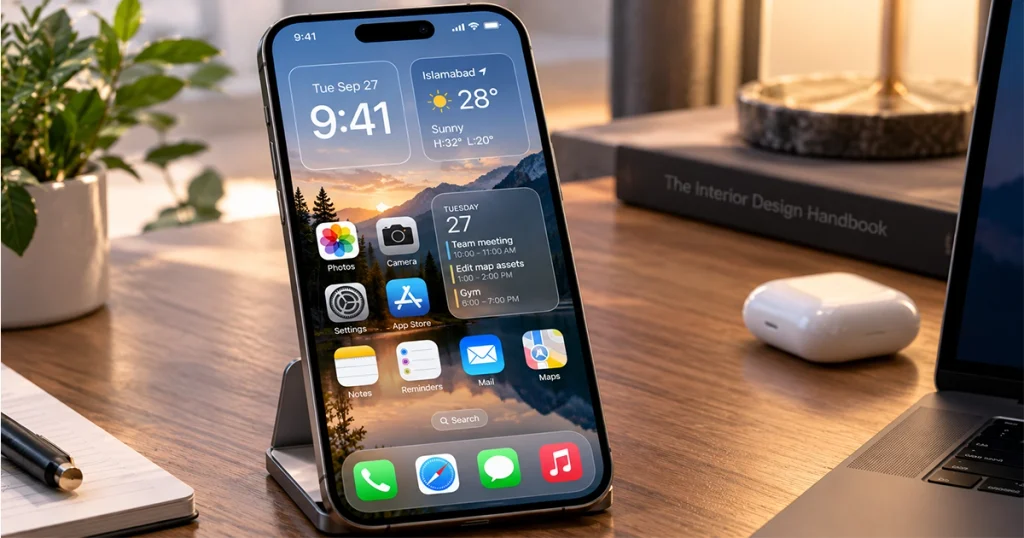
This is worth exploring if you care about how your iPhone looks just as much as how it works.
The trick is not to fill every part of the Home Screen with widgets and colors.
A more attractive setup usually comes from keeping things simple.
Choose a wallpaper that works with your icons.
Use only the widgets you actually need.
Keep similar apps together.
Experiment with the available Liquid Glass appearance options until readability and style feel balanced.
Sometimes making a phone look better is less about adding more and more about removing what you do not need.
Image recommendation: Official iOS 27 customization screenshot followed by a custom ConVisi example showing a clean Home Screen layout.
Bonus: Three iPhone 18 Pro Max Features Worth Setting Up Immediately
Once you’ve finished exploring the larger features, there are three smaller things worth checking.
First, customize Camera controls. Apple now lets you pin the camera tools you use most often above the frame, so photographers should arrange the controls around the way they actually shoot.
Second, spend a few minutes adjusting Photographic Styles. Finding a look you really like can save you from manually editing every photo afterward.
Third, try the new Siri AI rather than using it exactly like the old Siri. Ask follow-up questions, reference what’s on your screen, and try requests involving your own messages or photos. That is where the biggest difference becomes noticeable.
Which iPhone 18 Pro Max Feature Is the Most Useful?
There is no single feature that will matter equally to everyone.
For photography enthusiasts, variable aperture and manual Pro controls may be the biggest changes.
For everyday users, Clean Up, Extend, and Reframe could be the features they use most often.
For people who spend a lot of time searching through messages, emails, and photos, Siri AI’s personal context could potentially save the most time.
And for professionals who care about proving whether an image has been manipulated, Apple Reference Image is something genuinely different from the usual yearly iPhone camera upgrades.
That’s what makes this generation interesting: many of the best iPhone 18 Pro Max features are not features you simply look at. They are features you have to try.
Important Siri AI and Apple Intelligence Availability Notes
There are a few limitations you should know before trying everything in this guide.
Siri AI launched as a beta in English with iOS 27, with Apple saying French, Japanese, Korean, Portuguese, and Spanish support would follow in October. Apple Intelligence supports a broader collection of languages, but individual features can still vary by language and region.
Apple also says Siri AI is not initially available on iPhone in the EU, and Siri AI and other new Apple Intelligence capabilities are not available in China while regulatory requirements are being addressed.
Certain server-based Apple Intelligence features are also subject to usage limits, including Siri AI and some intelligent photo-editing tools.
So if you do not see one of the options described above, check your iOS version, language, Apple Intelligence settings, and regional availability before assuming something is wrong with your phone.

Best